16 Oct 2026
|6 min
Introducing Mobile testing
Mobile testing is now live in Lyssna, so you can record real participant sessions on mobile – screen, audio, and camera – in one recording.

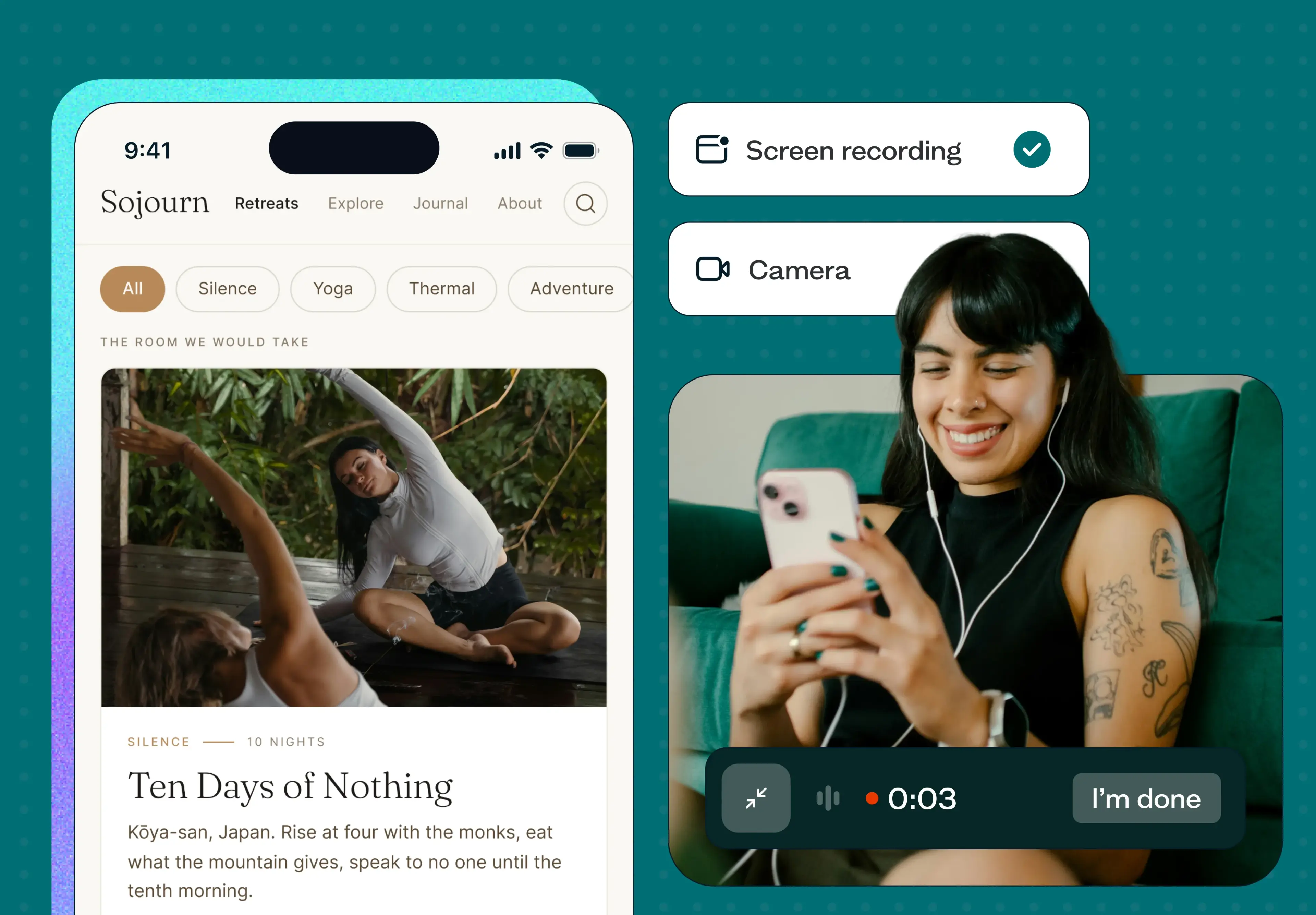
Mobile testing has always come with a catch: mobile browsers can't easily record a participant's screen, so seeing exactly how someone taps, scrolls, and hesitates on their own phone has usually meant a workaround – a camera-only recording that shows a face but not a screen, a DIY setup with Zoom and a second phone, or skipping mobile testing altogether and hoping desktop behavior was close enough.
In Lyssna, many test types already support screen recording on desktop. Mobile has been the exception, and it's shown up as a real gap for teams trying to understand how people behave on the devices many of their users are actually using.
The good news is you can now run a recorded study using Lyssna on a real mobile device, with screen, audio, and camera – the same way you already do on desktop. Here's what it looks like.
Key takeaways
Mobile testing is available in Lyssna, so you can record real participant sessions on mobile devices for the first time in Lyssna.
Two native apps capture screen, audio, and camera together on iOS and Android.
It's supported across nine study types, including prototype tests, card sorting, and live website testing.
It's available on paid plans, included at no extra cost.
Recordings land in the same Lyssna workspace as your desktop tests, alongside AI summaries.
Native mobile app testing isn't supported yet – mobile testing currently covers web-based and prototype-based studies.
What is mobile testing in Lyssna?
Mobile testing brings native screen recording to mobile devices, so researchers and designers can watch exactly what a participant does on their own phone, not just hear them describe it.
Two native apps, one participant experience
Two purpose-built apps make this possible: Respond by Lyssna for participants recruited from your own network, and the UserCrowd app for participants recruited from the Lyssna panel. Both capture screen, audio, and camera in a single recording on iOS and Android.
For you as the researcher, nothing about setting up a study changes. You build a mobile test the same way you build a desktop one – switch the device toggle to mobile, and the rest of the test builder works as usual.
What you can test
Mobile testing is supported across nine study types:
Navigation testing
Once a recording comes in, it behaves exactly like a desktop one. AI summaries work across mobile recordings the same way they do for desktop, and you're recruiting from the same research panel – 690,000+ participants across 124 countries, with 395+ targeting filters – or from your own network, with no separate mobile recruitment pipeline to manage.
What you can’t do (yet)
Right now, mobile testing covers web-based and prototype-based study types through the two participant apps – testing your own native mobile app isn't part of this yet.
How mobile testing works
1. Create your study
Switch the device setting to mobile, then add your test section as usual. You'll see the option to record screen, audio, and camera – toggle each on or off depending on what you need, and set this individually per section if your study has more than one.
2. Recruit your participants
Recruit from the Lyssna panel with your usual filters, or share a link with your own network – the same two options you already use for desktop studies, just with mobile participants this time.
3. The participant experience
Participants are guided to download the relevant app before the study opens – Respond by Lyssna for your own network, or the UserCrowd app for panel participants. Once it's installed, the study opens automatically and recording begins. There's no researcher present and no artificial lab setup – participants complete the study on their own device, in their own environment.
4. Your results
Recordings land in your results dashboard alongside everything else from that study – including any click data, paths taken, and AI summaries. Mobile and desktop results sit in the same workspace, so if you're running a study across both, you can compare them without switching tools.
Ways to use mobile testing
There are a few places this fits naturally into your research workflow:
Checking a mobile checkout flow. Watch exactly where someone hesitates or backs out during checkout on their own phone, rather than inferring it from analytics alone.
Testing a responsive redesign. See how a layout that works on desktop actually holds up once someone's using it one-handed, on a smaller screen, on the go.
Validating a mobile prototype. Watch someone navigate a prototype on the device it's actually designed for.
Running a live website test on mobile. Point participants at your real, live site and watch how mobile navigation and page structure hold up outside of a controlled prototype.
Try it and share your feedback
If you're on a paid plan (excluding legacy Starter and Basic accounts), mobile testing is ready to use in your account right now – switch the device toggle to mobile on your next study to get started. Our help docs walk through the full setup if you want a closer look.
If you have any feedback about mobile testing, you can also share thoughts any time through support or the Lyssna Slack community.
You may also like these articles