23 Oct 2026
|30 min
20 website testing tools: Free and paid options reviewed
Compare 20 website testing tools for usability, performance, cross-browser, and accessibility testing, with up-to-date pricing and free options.

Finding the right website testing tools can feel like its own research project – there are dozens of options, and picking the wrong one wastes time you don't have. Whether you're chasing faster page speeds, fewer accessibility gaps, or a clearer picture of how real people experience your site, the right tool depends on what you're trying to fix.
Most teams get by with a small set of tools that cover the gaps: something to check speed, something to check compatibility, and something to show what users do and why.
We've compared 20+ website testing tools, free and paid, across usability, performance, compatibility, accessibility, and behavior analysis – so you can narrow it down faster.
Key takeaways
Website testing tools cover different jobs, from page speed and accessibility to cross-browser checks and usability.
BrowserStack and BitBar test compatibility across real browsers and devices.
Google PageSpeed Insights shows Core Web Vitals from real Chrome users, alongside lab test results.
Microsoft Clarity and Contentsquare show where visitors click, scroll, and drop off.
WAVE and Lighthouse are free starting points for checking accessibility.
Lyssna's live website testing shows how real users experience your site, and why they get stuck.
What are website testing tools?
Website testing tools are software that check how a website works, performs, and feels to use. Depending on the tool, that might mean measuring how fast a page loads, checking it renders correctly in Safari, scanning for accessibility issues, or watching real people try to complete a task.
Most tools on this list focus on one of these types of testing:
Usability testing: Watch real people complete tasks on your site to find where they get confused or stuck.
Performance testing: Measure load times, server response, and Core Web Vitals.
Cross-browser and device testing: Check your site works on different browsers, operating systems, and screen sizes.
Accessibility testing: Scan for issues like missing alt text, low color contrast, and keyboard navigation problems.
Behavior analytics: Use heatmaps and session recordings to see what visitors do on your site.
A/B testing: Show different versions of a page to different visitors and measure which performs better.
Automated testing: Write scripts that repeat the same checks every time your site changes.
If you mainly want to collect comments from visitors or clients, see our roundup of website feedback tools.
A quick glance at the 10 best paid website testing tools
Note: All prices in this article are listed in USD unless otherwise stated, and reflect published pricing on each vendor's website as of October 2026. Some tools require a sales conversation for pricing – this is noted where relevant. G2 and Capterra ratings are also accurate as of October 2026 and are subject to change.
Tool | Best for | Pricing |
|---|---|---|
Lyssna | Testing your website's usability and user experience | • Free plan • Growth: Starts at $166/month • Enterprise: Custom pricing |
BrowserStack | Browser compatibility testing | BrowserStack Live (manual testing) plans: • Team: Starts at $150/month • Team Pro: Starts at $249/month • Team Ultimate: Starts at $375/month • Volume and Enterprise: Custom pricing |
Contentsquare (Hotjar) | Visual behavior analysis | • Free plan • Growth: Starts at at $39/month • Pro: Custom pricing • Enterprise: Custom pricing |
Optimizely | A/B testing | • Available upon request |
Crazy Egg | Heatmaps and scroll tracking | • Free plan • Starter: $29/month • Plus: $99/month • Pro: $249/month • Enterprise: $599/month |
Adobe Target | Website personalization | • Available upon request |
Applitools | Visual UI testing | • Starter: Starts at $667/month • Professional: Custom pricing • Enterprise: Custom pricing |
TestRail | Test management | • Essentials: From $22/user/month • Professional: From $39/user/month • Enterprise: From $78/user/month |
BitBar by SmartBear | Live device testing | • Live Testing: Starts at $47/license/month • BitBar Unlimited: Starts at $209/license/month • Enterprise: Custom pricing |
Pingdom | Website performance monitoring | • Synthetic Monitoring: Starts at $16.50/month • Real User Monitoring: Starts at $16.50/month • Enterprise: Custom pricing |
A quick glance at the 10 best free website testing tools
Tool | Best for | Pricing |
|---|---|---|
Google PageSpeed Insights | Page speed and Core Web Vitals | Free |
Chrome DevTools | Debugging | Free (built into Chrome) |
Microsoft Clarity | Session insights | Free |
GTmetrix | Site optimization | Free version available |
WAVE – Web Accessibility Evaluation Tool | Testing the accessibility of your website | Free |
Screaming Frog SEO Spider (free version) | SEO audits | Free version: up to 500 URLs |
Lighthouse | Assessing website performance and accessibility | Free |
Selenium | Automated testing | Free and open-source |
Playwright | Automated end-to-end testing | Free |
WebPageTest | Load testing | Free |
10 paid website testing tools
When it comes to website testing, paid tools bring extra features to the table. They usually come with advanced features, detailed analytics, and dedicated support.
Each entry covers what the tool is best for, its key features, pros and cons, and pricing. Pricing comes from each vendor's website, and ratings come from G2 or Capterra.
A few tools in this section, including Lyssna, Contentsquare, and Crazy Egg, also offer a free plan. We've included them here because their core features sit on paid plans, while the free plan is a way to get started.
1. Lyssna
Best for: Testing your website's usability and user experience
Lyssna shows you how real people interact with your website. It gives you insights into usability, design effectiveness, and how SEO and user experience work together to shape user behavior. Whether you're running unmoderated or moderated usability testing, gathering survey feedback, or running user interviews, Lyssna makes the process simple and fast.
G2 rating: 4.4/5
Key features
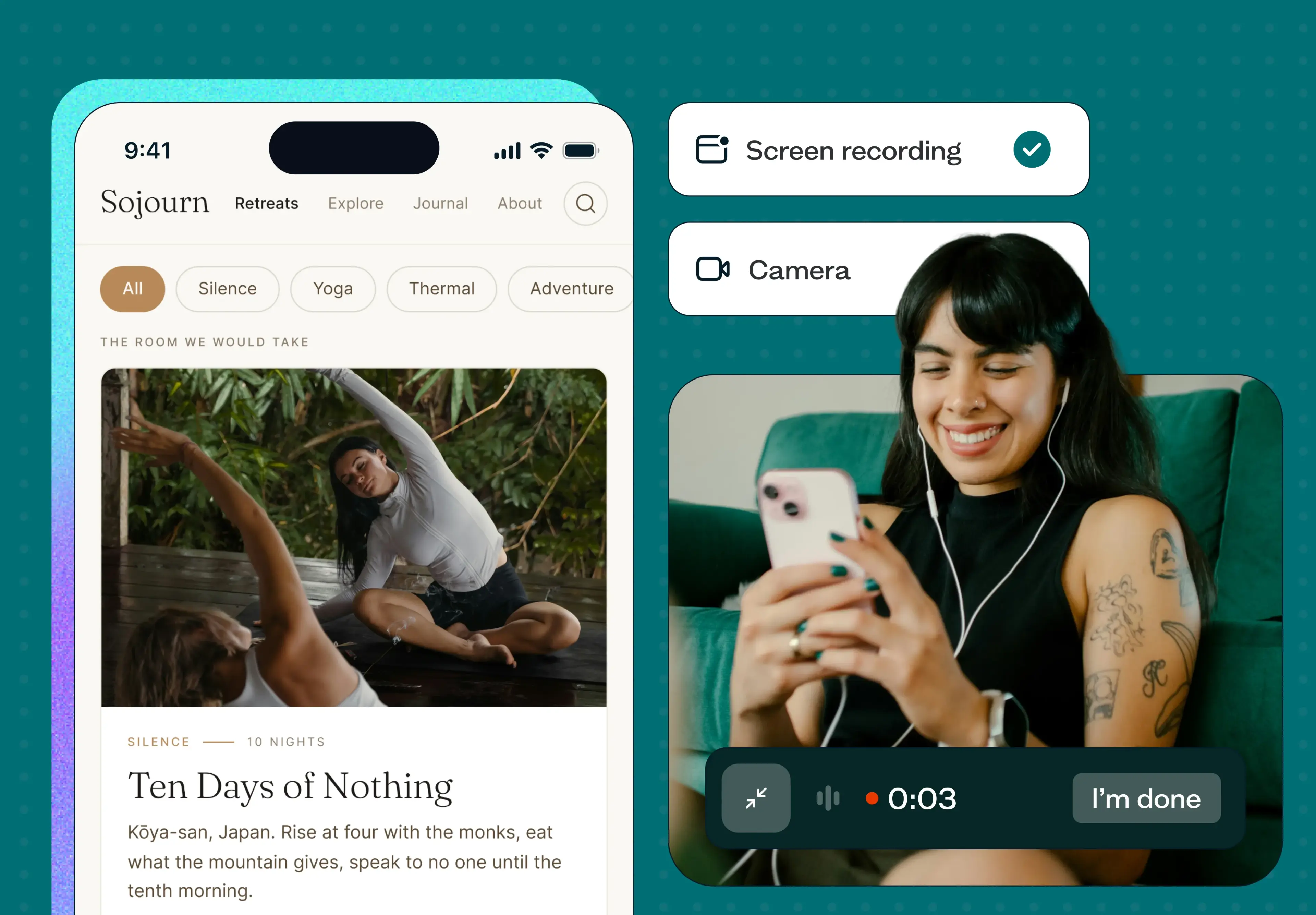
Live website testing: Record participants' screen, audio, and camera as they complete tasks on any live website – yours or a competitor's – with no code or developer setup needed.
Mobile testing: Participants complete studies on their own iOS or Android phones, with their screen, audio, and camera captured in one recording.
Unmoderated usability testing: Get feedback from real users as they navigate your site or prototype.
Flexible research methods: Run surveys, prototype tests, preference tests, and user interviews from one platform.
Participant recruitment: Recruit from Lyssna's research panel of 690,000+ participants across 124 countries, with 395+ demographic and psychographic targeting options – or recruit your own users.
With live website testing in Lyssna, you can:
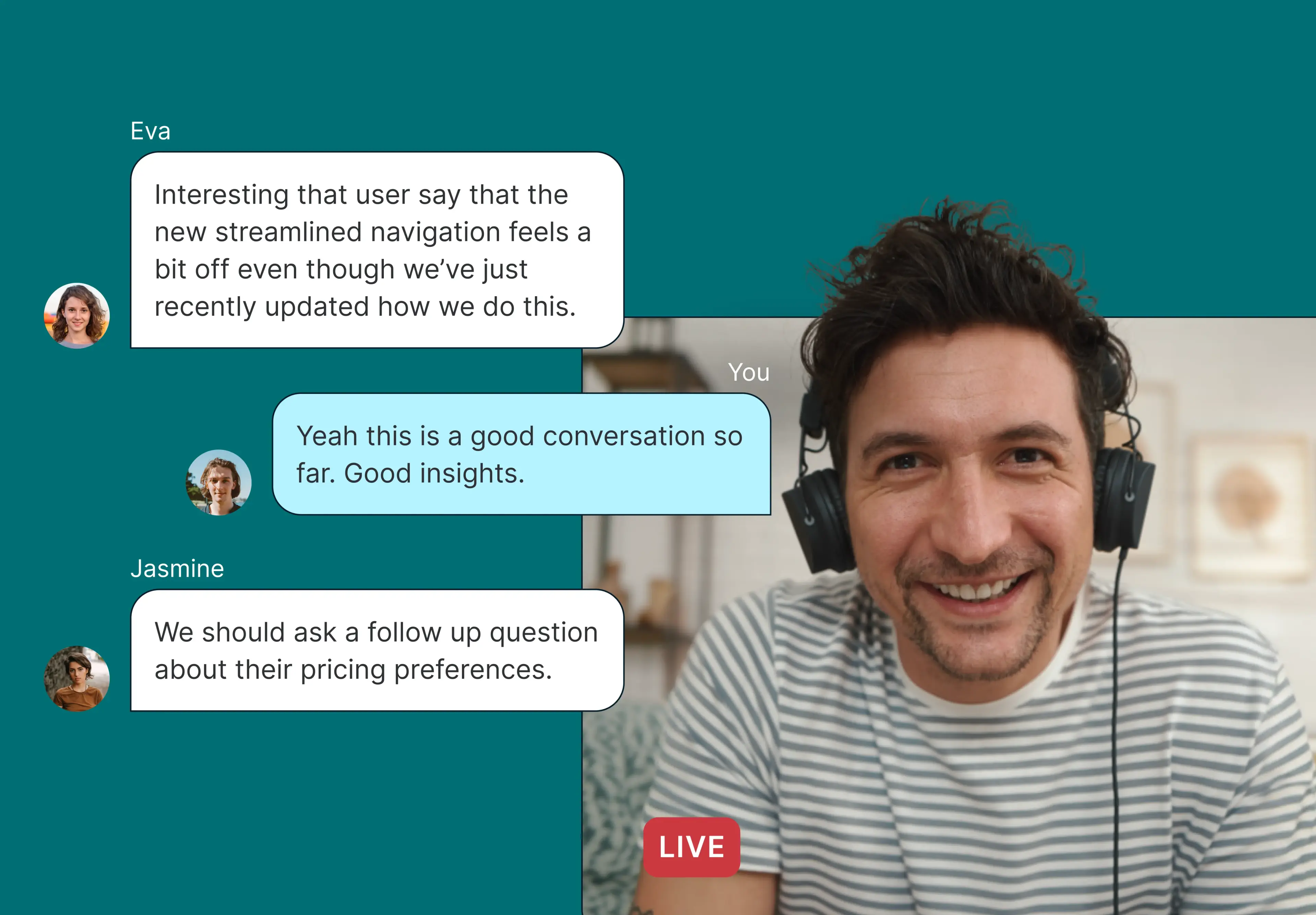
Record live user sessions: Capture participants' screen, audio, and camera as they interact with your live website.
Give clear instructions: Show task prompts in a floating window while participants use your site.
Ask follow-up questions: Gather context during or after the test to understand why participants did what they did.
Recruit the right people: Use Lyssna's panel to get feedback from participants who match your audience.
To get started, use one of our live website testing templates, like testing your website navigation.
Pros: Intuitive test setup, a wide range of research methods, and detailed session recordings.
Cons: Doesn't specialize in cross-browser compatibility checks.
Here's a demo of how live website testing works in Lyssna:
Plans and pricing
Free: Three seats, unlimited quick studies, and user interviews.
Growth: Starts at $166/month (billed annually). Includes five seats, five in-depth studies per month, AI summaries, live website testing, and mobile testing.
Enterprise: Custom pricing, with unlimited seats, SSO, and advanced security features.
Panel responses are pay-as-you-go on all plans, at $1 per credit.
What users are saying about Lyssna
“Fantastic tool if you're looking for fast, easy access to audience insights. One of its biggest strengths is the speed—I've been able to get comprehensive results in just a few hours.” Elena G.
2. BrowserStack
Best for: Browser compatibility testing
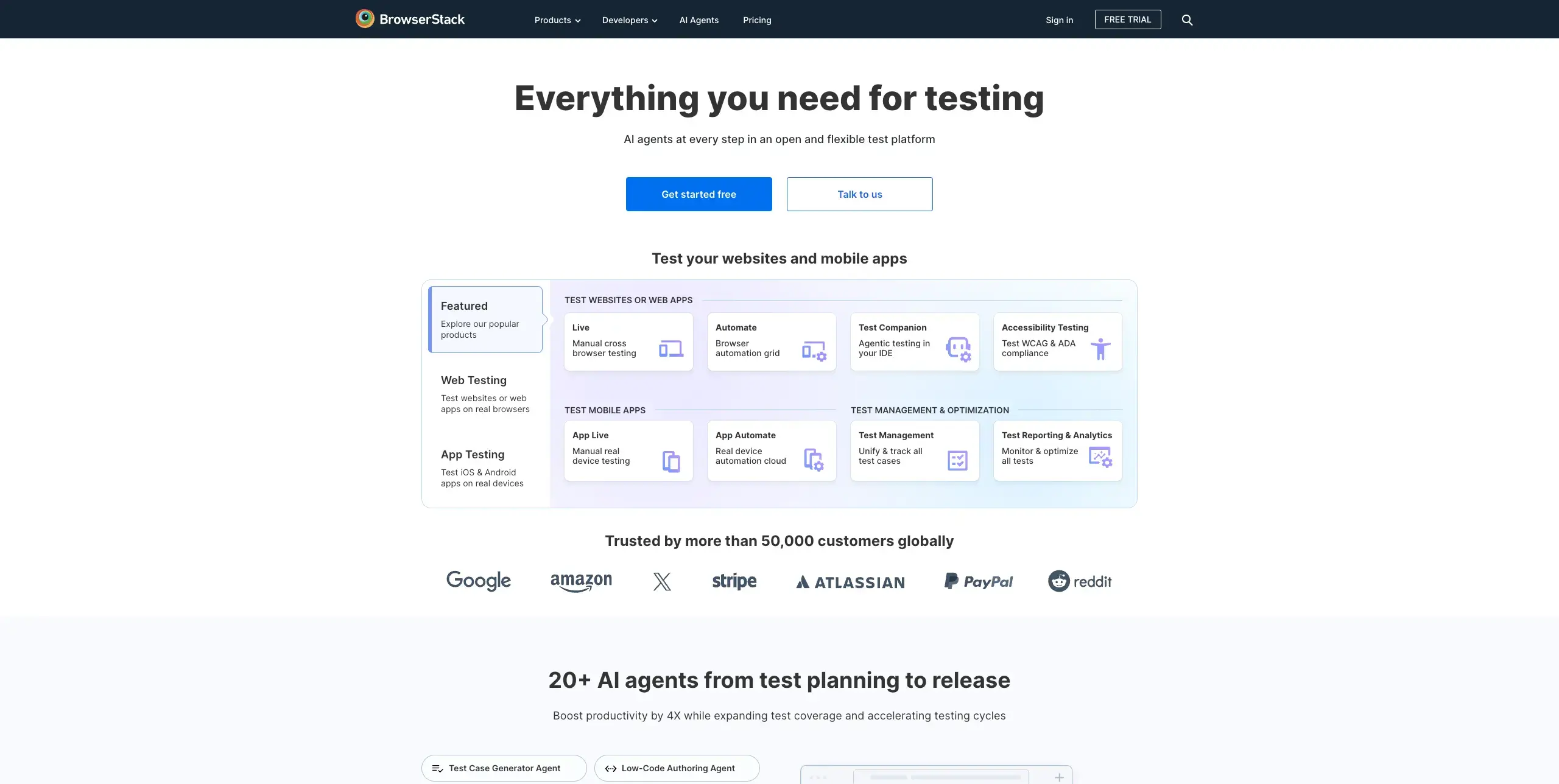
With so many devices and browsers in use today, you can't afford to have a site that works on Chrome but breaks on Safari. BrowserStack lets you test your site across 3,500+ real desktop and mobile browser combinations.
G2 rating: 4.4/5
Key features
Real device testing: Test on actual smartphones, tablets, and desktops.
Cross-browser compatibility: Check your site works on Chrome, Safari, Edge, Firefox, and more.
Instant cloud access: No need to download software – it's all online.
Pros: Wide coverage of devices, real-world testing, and no need to maintain a device lab.
Cons: It can get pricey if you need access to a large range of devices.
Plans and pricing
BrowserStack Live (manual testing) plans:
Team: Starts at $150/month (billed annually).
Team Pro: Starts at $249/month (billed annually).
Team Ultimate: Starts at $375/month (billed annually).
Volume and Enterprise: Custom pricing.
What users are saying about BrowserStack
“BrowserStack Live is a solid tool, but it has room to get better in a few areas. For starters, the cost can hit hard for smaller teams or solo developers if you need to check your work on lots of devices and browsers often. Also, the connection can be hit-or-miss at times when you're testing on older or basic devices. This isn't a huge problem, but it can affect how well you can test.” Swarnadeep K.
3. Contentsquare (formerly Hotjar)
Best for: Visual behavior analysis
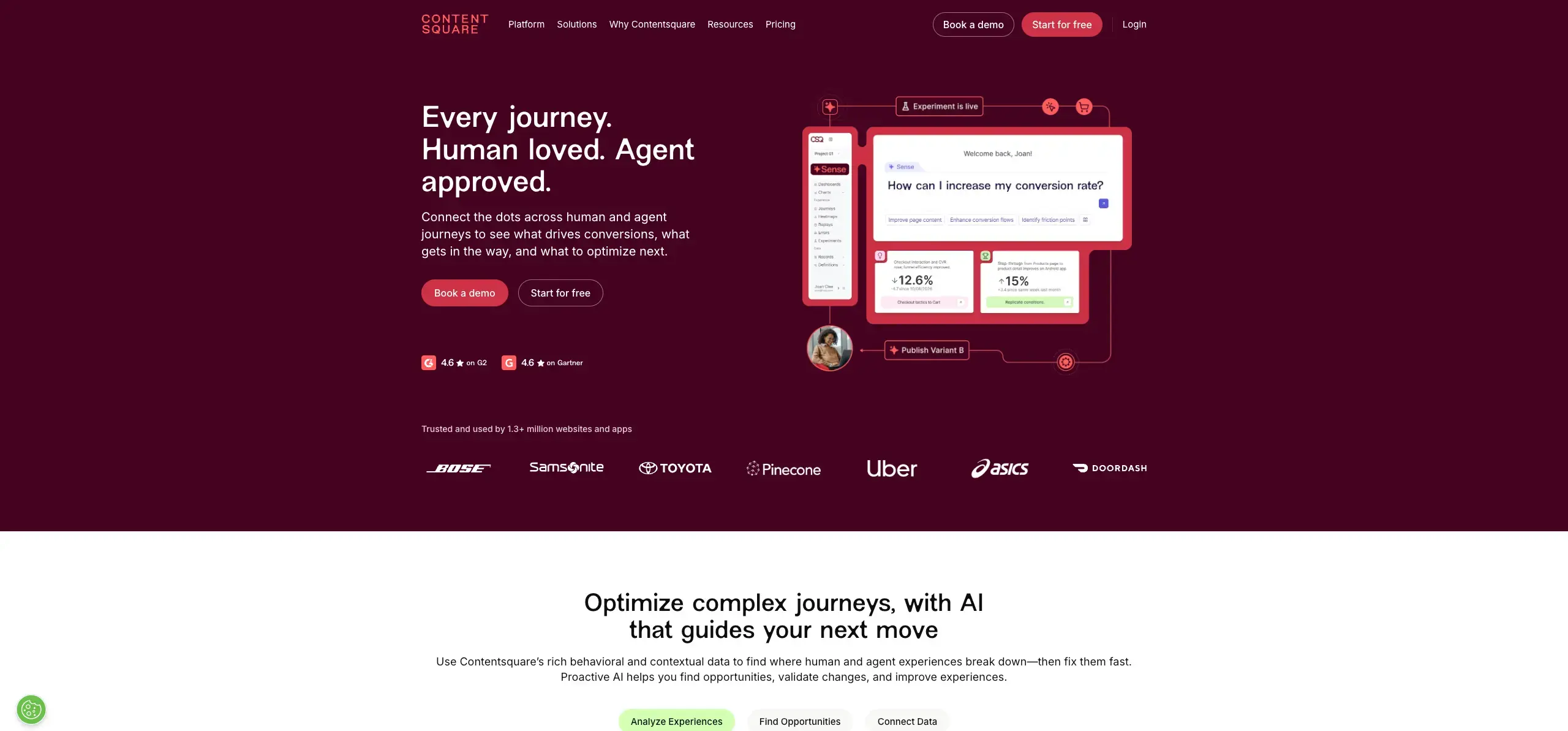
Hotjar is now part of Contentsquare, and it's no longer possible to create a new Hotjar account. Everything Hotjar offered – heatmaps, session replay, and surveys – is part of Contentsquare, along with Attention Maps, funnels, error and performance monitoring, and AI-powered insights from Sense AI.
G2 rating: 4.6/5
Key features
Heatmaps and Attention Maps: See where users click, scroll, and focus.
Session replay: Watch real user sessions to spot errors and friction.
Error and performance monitoring: Catch errors and slow load times that hurt conversions.
Surveys and AI insights: Collect direct feedback from visitors, with AI chat and summaries on paid plans.
Pros: The core toolset people relied on Hotjar for, plus a generous free plan.
Cons: People searching for Hotjar by name may not realize it's now Contentsquare. Sense AI features sit on paid plans.
Plans and pricing
Free: $0/month for up to 200,000 monthly sessions, with heatmaps, session replay, funnels, error and performance monitoring, basic surveys, and an MCP connection for AI tools.
Growth: $39/month (billed annually), starting from 7,000 monthly sessions.
Pro: Custom pricing.
Enterprise: Custom pricing.
What users are saying about Hotjar (Contentsquare)
“Once you go through the easy install, you get so much possibilities to enquire your users and gain valueble insight. It is quite an expensive tool. Feedback is very usefull, but you do have to pay for it.” Verified user.
4. Optimizely
Best for: A/B testing
With A/B testing at its core, Optimizely lets you run controlled experiments on different versions of your site, showing you which one performs better.
G2 rating: 4.2/5
Key features
A/B and multivariate testing: Run tests to see which version of a page performs best.
Personalization: Tailor experiences for visitors based on behavior or audience.
Data-driven decisions: Get statistical evidence of which site changes lead to better results.
Pros: Good for running A/B tests and improving site conversions.
Cons: Can be complex to set up for non-technical users.
Plans and pricing
Every plan is individually packaged, so pricing is available on request.
What users are saying about Optimizely
“Ability to test, iterate, and learn quickly, but a bit difficult to get the hang of and requires significant traffic which can be hard when starting out”. Verified user.
5. Crazy Egg
Best for: Heatmaps and scroll tracking
If you're focused on understanding how users engage with specific pages, Crazy Egg is a user-friendly option.
G2 rating: 4.2/5
Key features
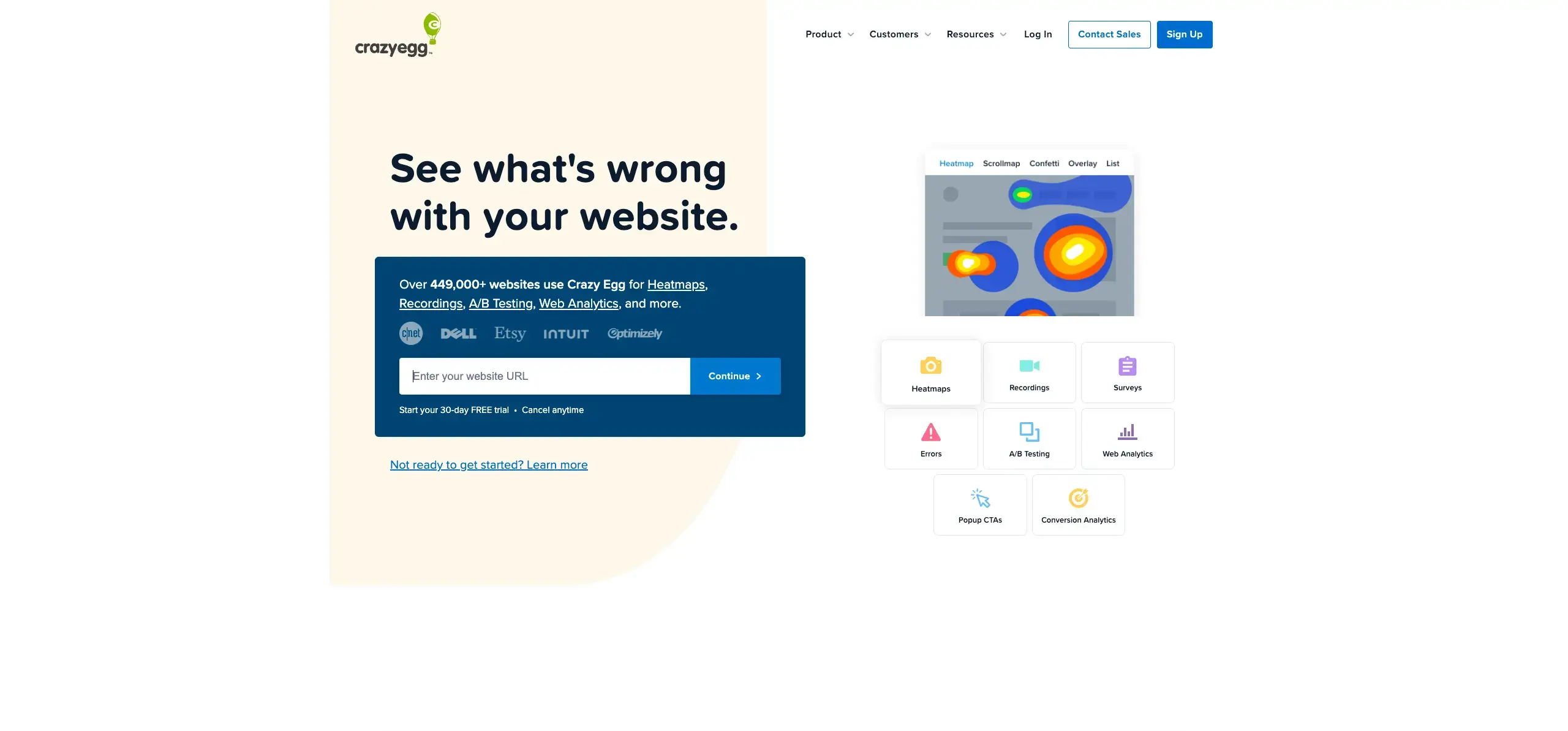
Heatmaps and scroll maps: See where users click and how far they scroll down each page.
User behavior tracking: Spot areas of confusion or high interaction.
A/B testing: Test design changes directly within the platform.
Pros: Intuitive interface, easy to understand, and clear visual reports.
Cons: Limited to behavior tracking – no usability testing or real-time monitoring.
Plans and pricing
All paid plans are billed annually and come with a 30-day free trial.
Free plan: Web analytics, heatmaps, and surveys.
Starter: $29/month for 5,000 pageviews.
Plus: $99/month for 150,000 pageviews.
Pro: $249/month for 500,000 pageviews.
Enterprise: $599/month for 1 million pageviews.
What users are saying about Crazy Egg
“Simple for developers to set up and business users to use. Provides some great on page visuals that are easy to understand. For dynamic pages, it is difficult to understand the the on page visuals, because the click "area" doesn't always represent what the user is actually clicking on.” Verified user
6. Adobe Target
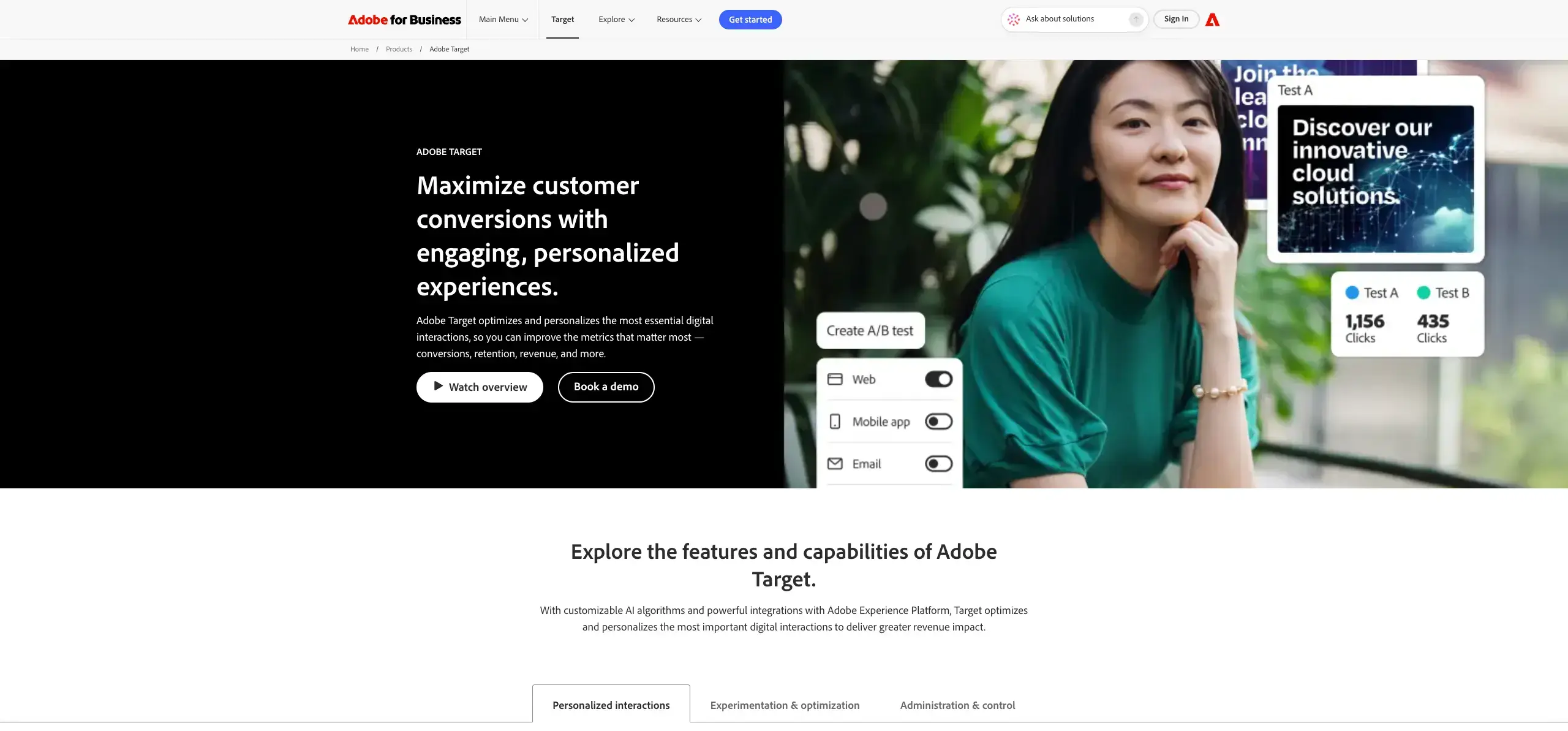
Best for: Website personalization
If you’re looking to personalize user experiences, Adobe Target is a powerful tool. It allows you to create personalized, dynamic website experiences for different users based on location, device, or behavior.
G2 ratings: 4.0/5
Key features
AI-driven personalization: Deliver customized content using machine learning.
A/B and multivariate testing: Test several variations at once.
Dynamic website content: Change what users see based on their location, device, or past interactions.
Pros: Advanced personalization and AI-driven insights.
Cons: Steep learning curve for new users.
Plans and pricing
Pricing depends on the product options and volume you need, and is available on request.
What other users are saying about Adobe Target
“While Adobe Target is powerful, it can be quite complex to set up and configure, especially for teams without dedicated technical resources. The learning curve is steep, and some features feel overcomplicated.” Art B.
7. Applitools
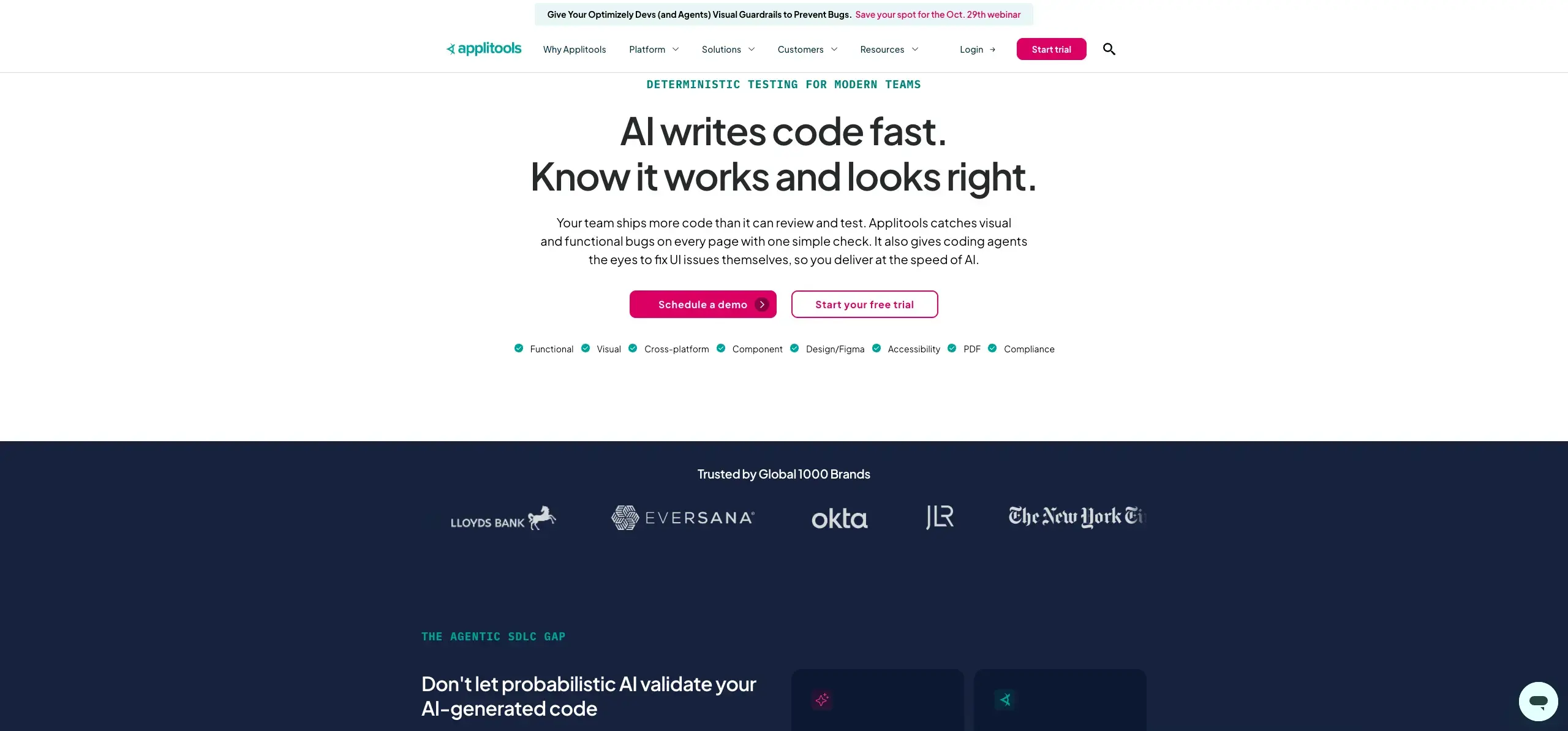
Best for: Visual UI testing
Applitools tests the visual appearance of websites. It detects design issues that functional testing tools might miss, like layout shifts and incorrect fonts.
G2 rating: 4.3/5
Key features
Visual AI testing: Find visual differences between versions of your site automatically.
Cross-browser and device support: Test your visual UI across multiple browsers and devices.
Regression testing: Spot unexpected visual changes in new site versions.
Pros: Automatically spots visual issues that can go unnoticed.
Cons: Limited to visual testing – it doesn't test usability or functionality.
Plans and pricing
Starter: $667/month (billed annually), with unlimited users and a free trial.
Professional: Custom pricing.
Enterprise: Custom pricing.
What users are saying about Applitools
“Applitools is a great tool when it comes to testing user facing components. It makes this a seamless process for a list of front end services. Just like many platforms, the documentation can be a little lacking at times.” Verified user
8. TestRail
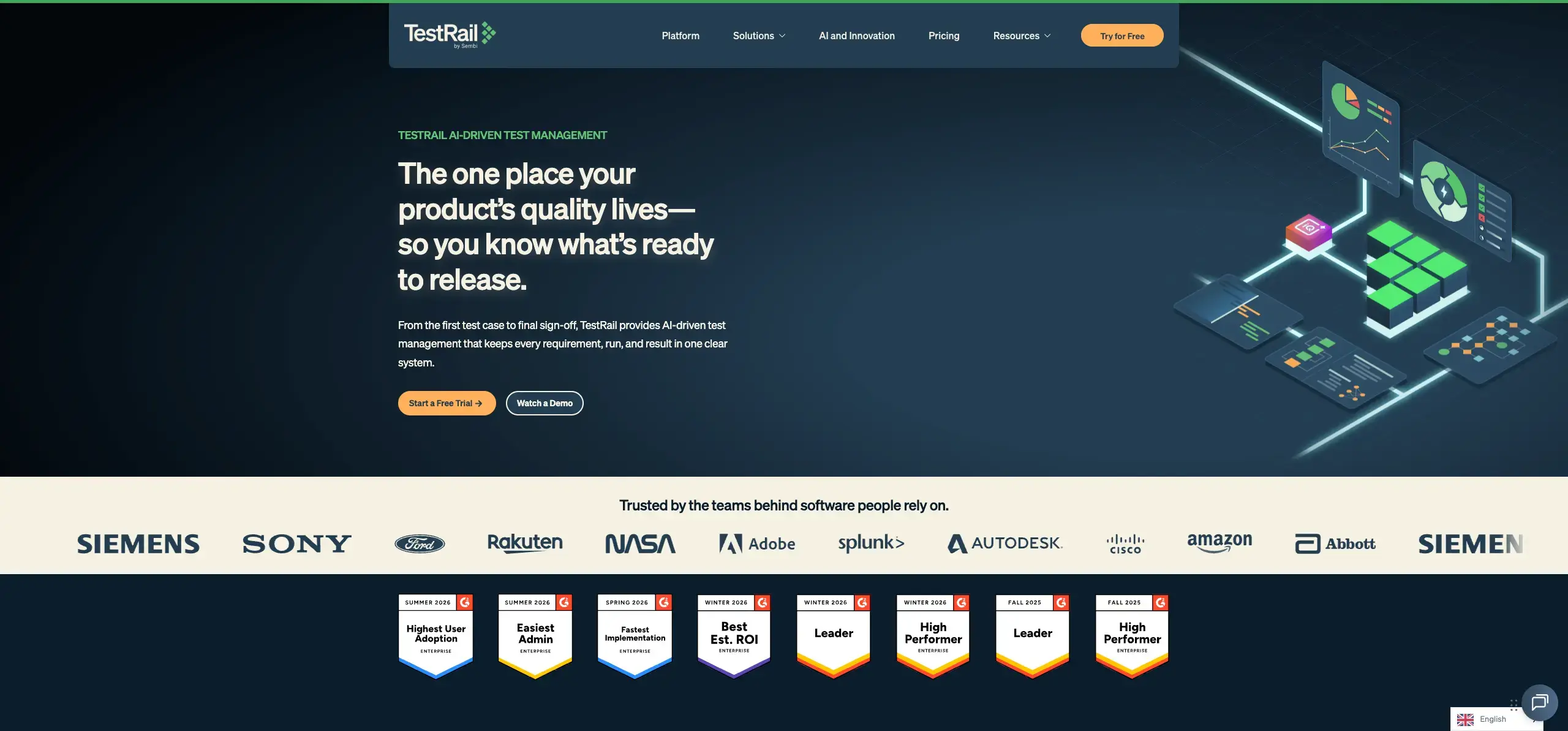
Best for: Test management
f you're managing a large team of testers, TestRail helps you track and manage all your website tests in one place. It's a central dashboard where you can organize test cases, log issues, and track progress.
G2 rating: 4.4/5
Key features
Test case tracking: Log, assign, and track all tests in one system.
Issue tracking: Record issues and prioritize fixes.
Team collaboration: Share updates and progress with your team.
Pros: Keeps teams organized and aligned on testing priorities.
Cons: Best suited for larger QA teams. Solo testers may find it more than they need.
Plans and pricing
Essentials: $22/user/month (billed annually) – cloud only.
Professional: $39/user/month (billed annually) – cloud/on-premise.
Enterprise: $78/user/month (billed annually) – cloud/on-premise.
What users are saying about TestRail
“Efficient and intuitive test management with minor hiccups”. Verified user
9. BitBar by SmartBear
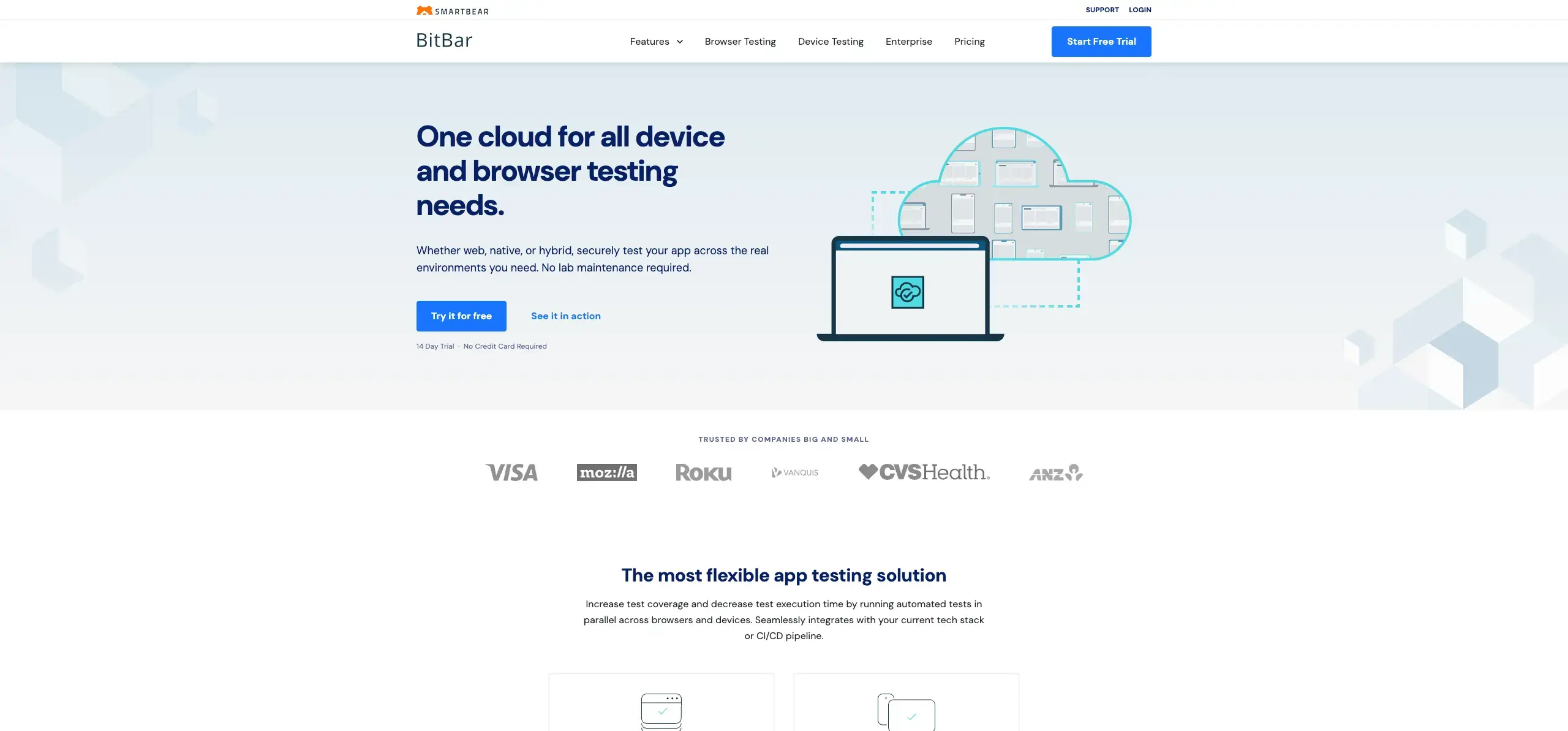
Best for: Live device testing
Similar to BrowserStack, BitBar gives you access to real devices for website testing. Run tests on real iPhones, Androids, and desktops to check compatibility across devices.
G2 rating: 4.1/5
Key features
Real device testing: Test on actual devices, not simulators.
Live interaction: Test how pages respond to user interactions.
Automated testing: Run automated tests at scale.
Pros: Test on real devices with live interaction.
Cons: Price increases with the number of devices you need.
Plans and pricing
Live Testing: Starts at $47/license/month (billed annually).
BitBar Unlimited: Starts at $209/license/month (billed annually).
Enterprise: Custom pricing.
Free 14 day trial available.
What users are saying about BitBar
“I like the ease of testing our site over all the different browsers and devices. It is simple to use and the automation capabilities are outstanding if you are limited on time.” Jake M.
10. Pingdom
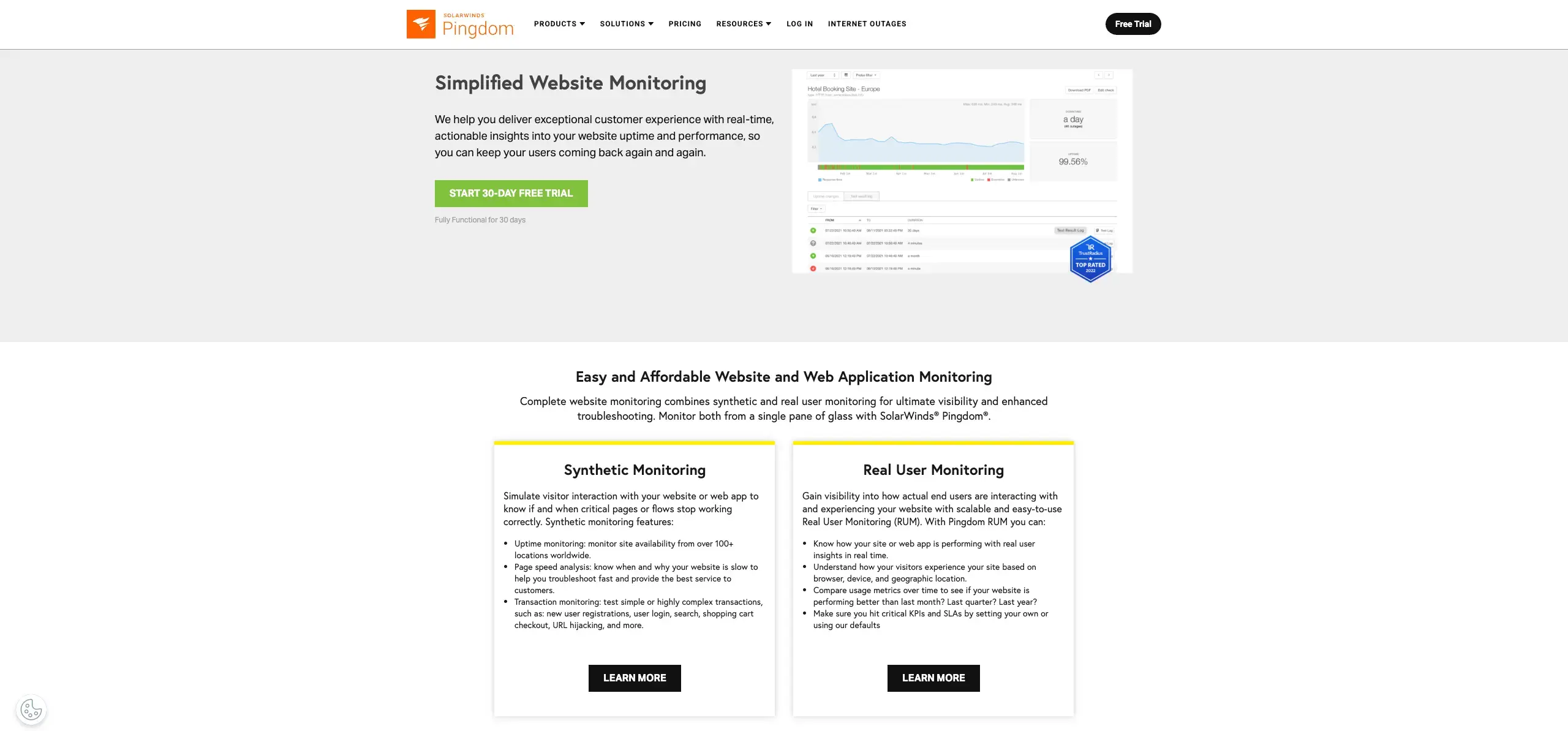
Best for: Website performance monitoring
If you're worried about load times and downtime, Pingdom offers uptime monitoring and performance tracking. You'll know quickly if your site goes down or gets too slow.
Capterra rating: 4.5/5
Key features
Uptime monitoring: Get alerts if your site goes down.
Page speed monitoring: Track how fast your pages load.
Real user monitoring: See how load times vary for actual visitors.
Pros: Reliable alerts and performance tracking.
Cons: Not a usability testing tool. Pingdom's free speed test reports load times and request timings, not Core Web Vitals.
Plans and pricing
Synthetic Monitoring: Starts at $16.50 month (billed annually).
Real User Monitoring: Starts at $16.50/month (billed annually).
Enterprise: Custom pricing, for 500,000+ monthly pageviews.
What users are saying about Pingdom
“Pingdom is one of the original services (at least that I can remember) for ping uptime testing. Its uptime alerting is reliable and stable. Unfortunately the price point just isn't competitive anymore, relative to the features they provide.” Chris (Capterra)
10 free website testing tools
Free tools often come with limits, like fewer features or usage caps, but they're a great way to get started with performance checks, accessibility audits, and SEO checks.
Here are 11 free website testing tools you can try today.
1. Google PageSpeed Insights
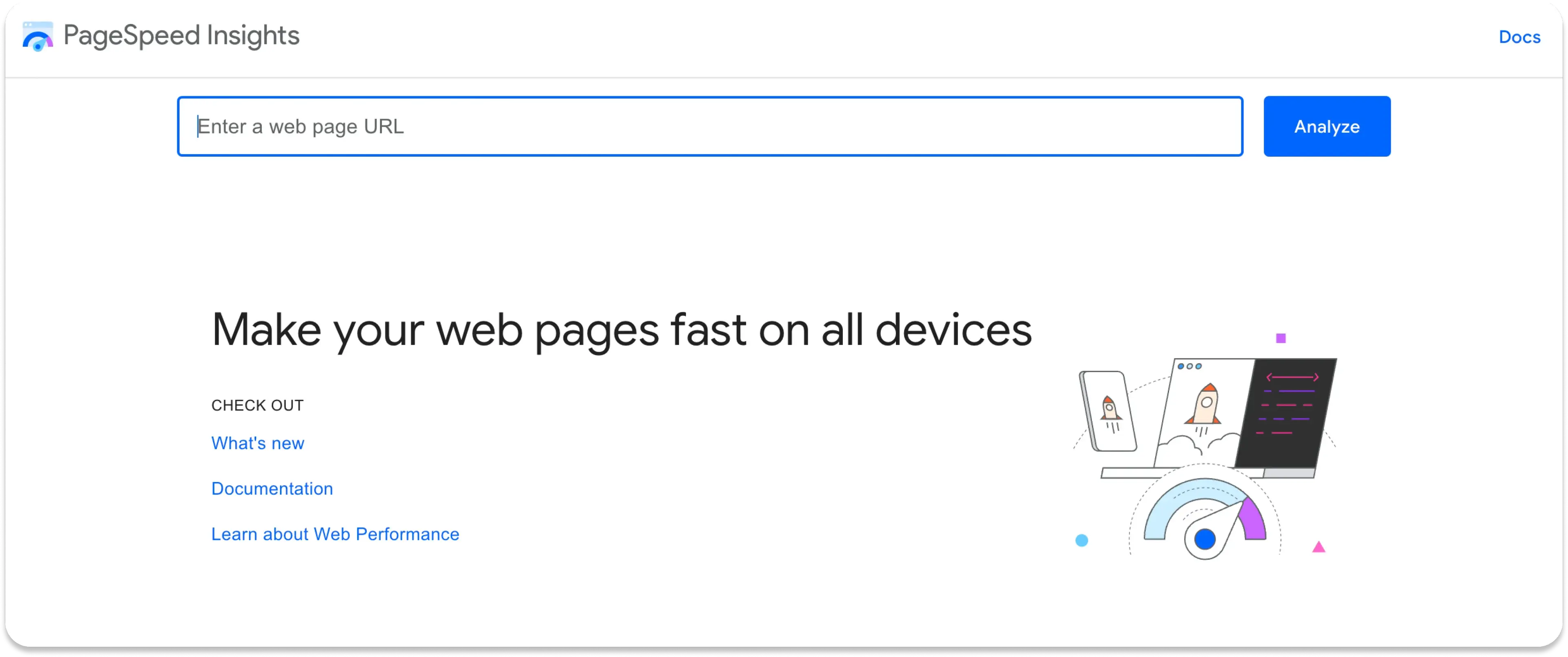
Best for: Page speed and Core Web Vitals
If you want a quick read on your site's speed, Google PageSpeed Insights is the place to start. It gives your page a performance score from 0 to 100 on both mobile and desktop.
It shows two types of data. Lab data comes from a Lighthouse test run in controlled conditions. Field data comes from the Chrome UX Report (CrUX), which reflects what real Chrome users experienced on your page. Field data is where you'll see whether your page passes Core Web Vitals.
Key features
Performance score: Get a score from 0 to 100, where 90 or above is good.
Core Web Vitals: See LCP, INP, and CLS from real-user data, and whether your page passes.
Mobile and desktop testing: Compare how your page performs on each.
Pros: Free, no sign-up needed, and shows real-user field data and lab data side by side.
Cons: Focused on speed only – no usability or design insights. It shows a snapshot and doesn't track results over time.
2. Chrome DevTools
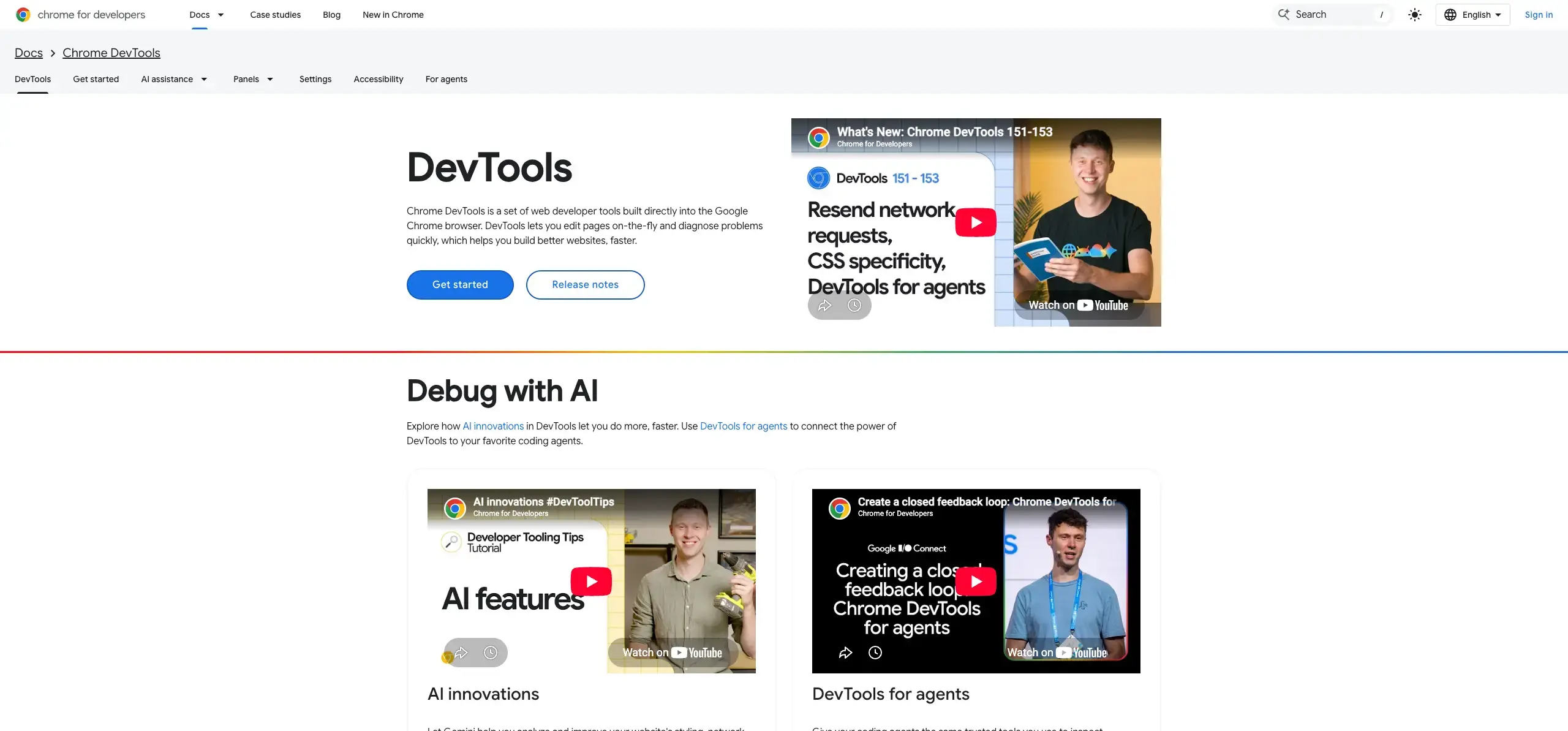
Best for: Debugging
If you're already using Google Chrome, DevTools is built into your browser and lets you inspect, debug, and change website code in real time.
Key features
Inspect elements: View and change HTML and CSS directly.
Debugging tools: Find and fix JavaScript errors.
Performance panel: See local Core Web Vitals as you load and interact with a page, along with network requests.
Pros: Available in every Chrome browser and great for debugging live sites.
Cons: Requires some technical knowledge to use effectively.
3. Microsoft Clarity
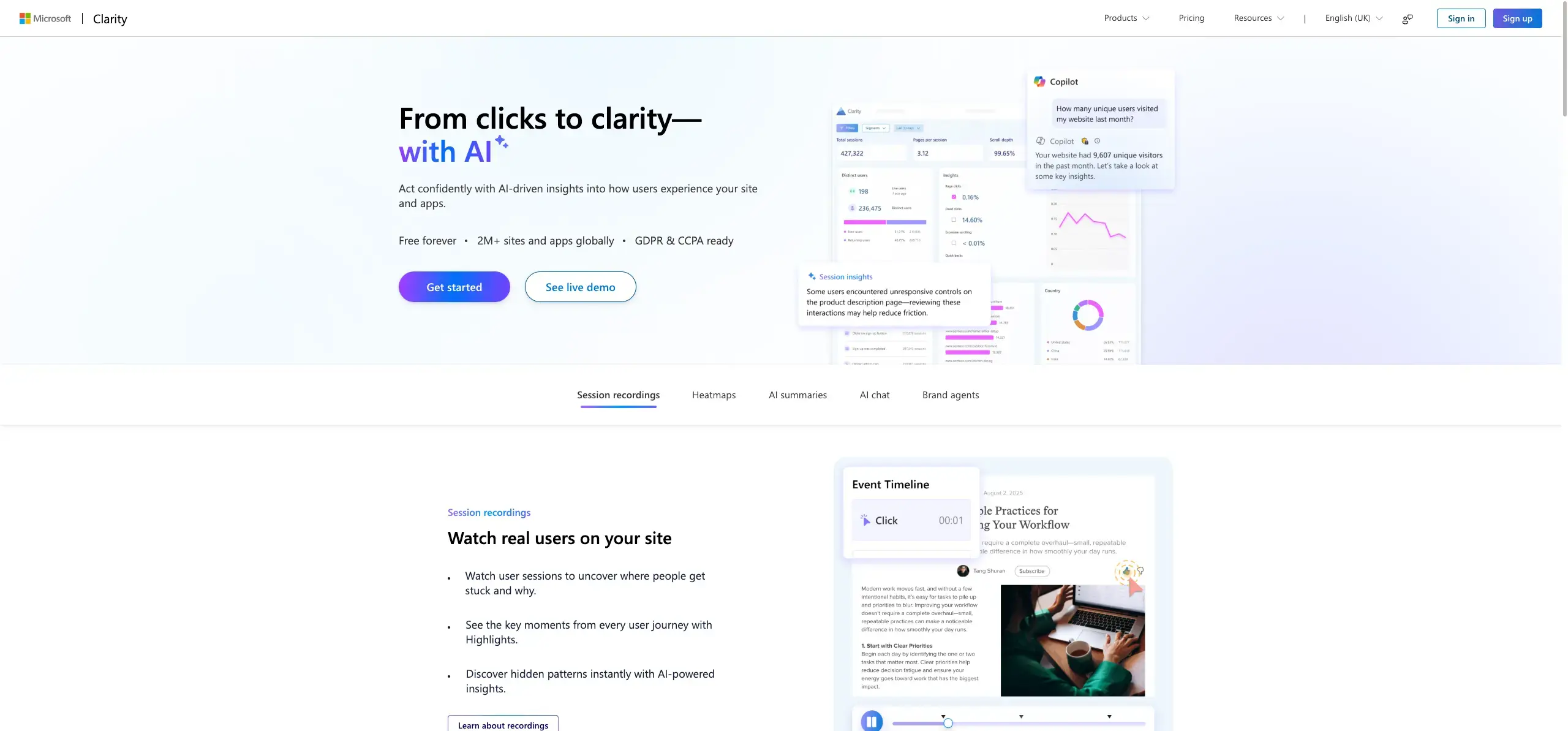
Best for: Session insights
Microsoft Clarity records user sessions so you can see every click, scroll, and movement. It's similar to Contentsquare, but free with no traffic limits.
Key features
Session recordings: Watch how users interact with your site.
Heatmaps: See where users click and scroll.
Dead click tracking: Find where users click but nothing happens.
AI and MCP: Get AI summaries with Copilot, or connect Clarity to AI tools through its MCP server.
Pros: Completely free, with heatmaps and session recordings.
Cons: Reviewing large volumes of session data can be overwhelming.
4. GTmetrix
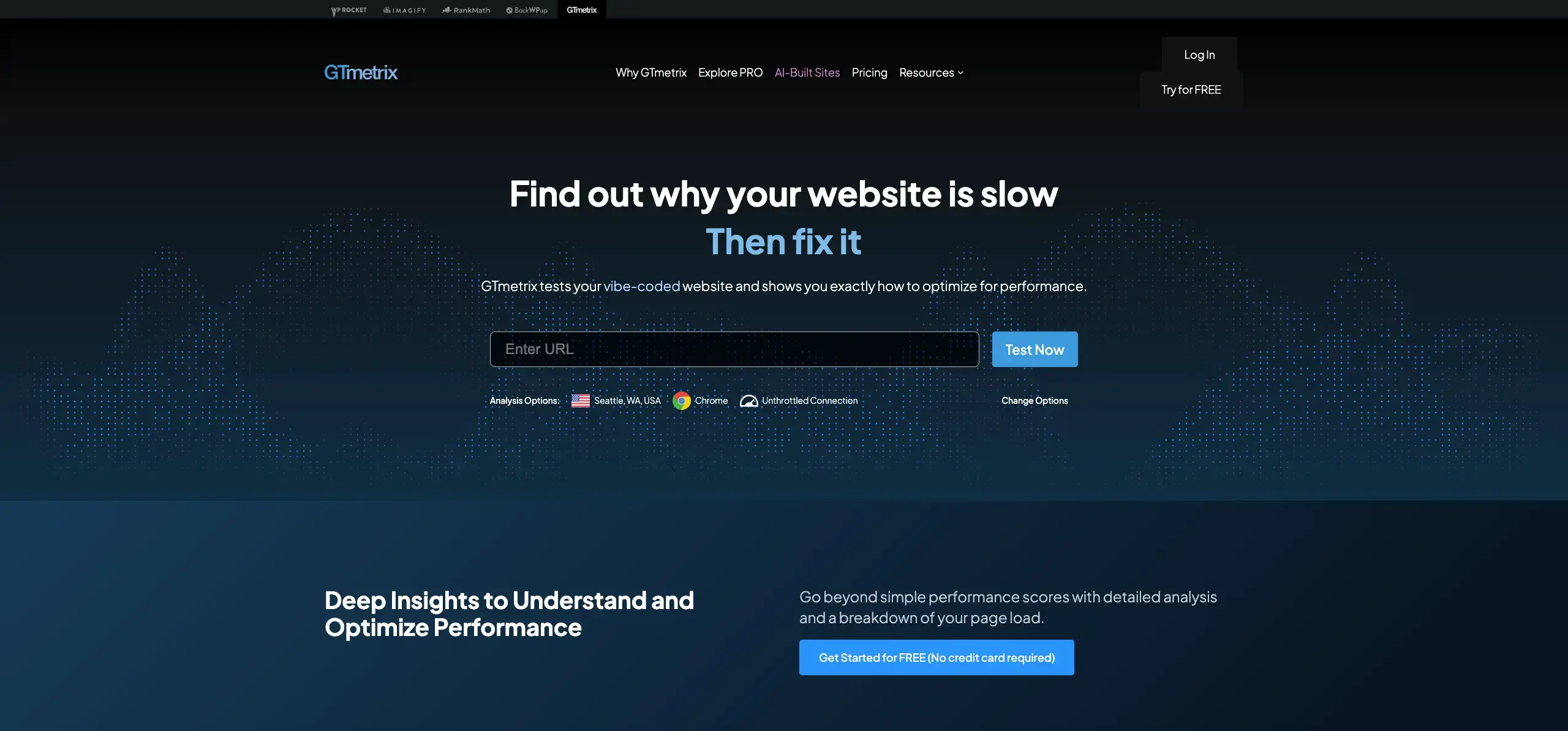
Best for: Site optimization
GTmetrix checks how well your site performs and shows exactly what's slowing it down – like large images or too many server requests.
Key features
Performance score: Get an overall grade for speed and optimization.
Waterfall reports: See every request your page makes, in order, to find what's holding it back.
CrUX data: See real-user data trends alongside your test results.
Pros: Detailed reports that show what to fix.
Cons: The free plan needs an account and is limited to five tests a month for three months, from two test locations. Paid plans start at $4.99/month (billed annually).
5. WAVE - Web Accessibility Evaluation Tool
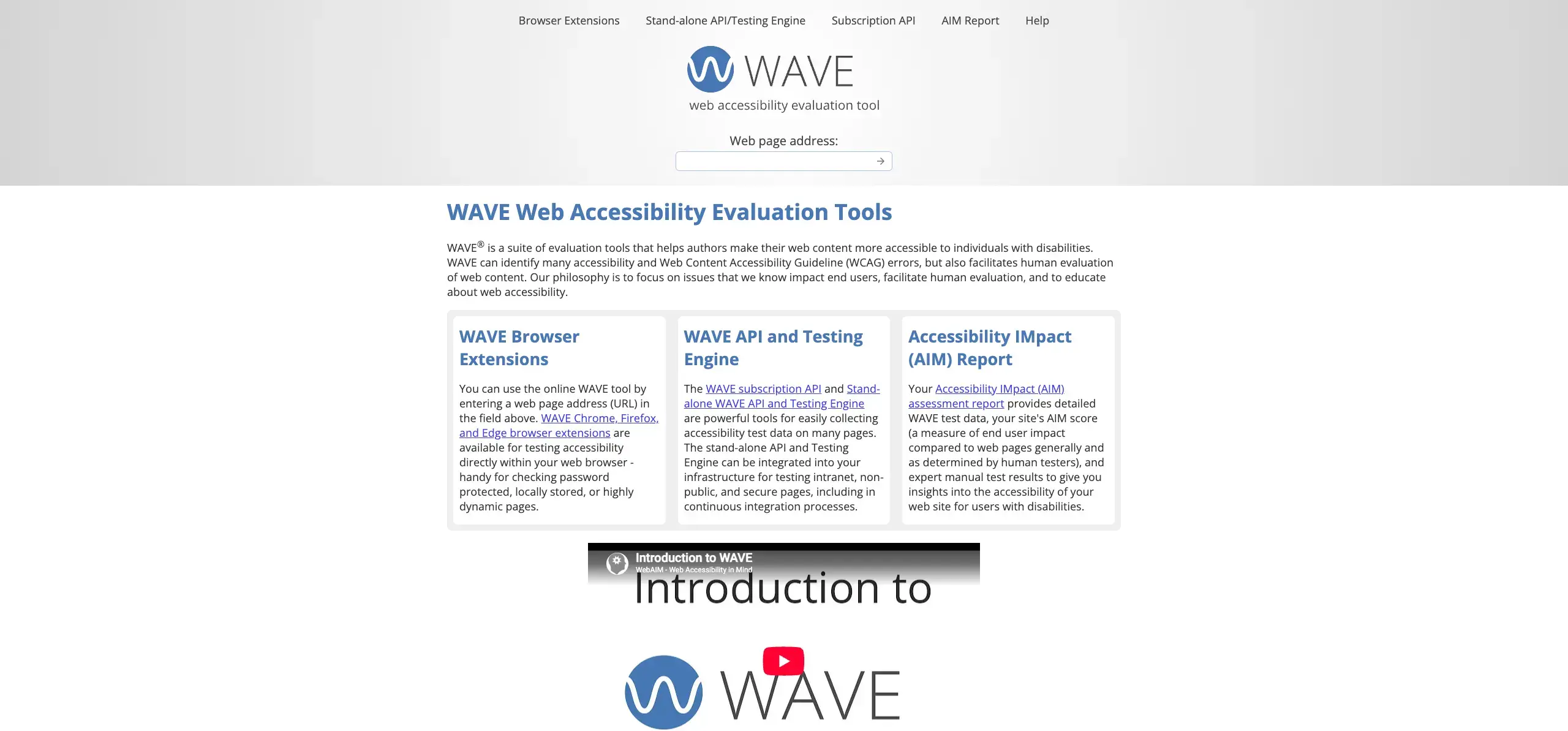
Best for: Testing the accessibility of your website
If you want to make your website accessible to everyone, including people with disabilities, WAVE is a great resource from WebAIM. It scans your pages for accessibility issues like missing alt text or low-contrast colors, and identifies many WCAG errors.
Key features
Accessibility checks: Flags issues with design, navigation, and more.
Error explanations: Tells you what each issue is and how to fix it.
Browser extensions: Test sites directly from Chrome, Firefox, or Edge, including password-protected pages.
Pros: Free to use and easy to understand.
Cons: Limited to accessibility checks – no performance or usability analysis.
6. Screaming Frog SEO Spider (Free Version)
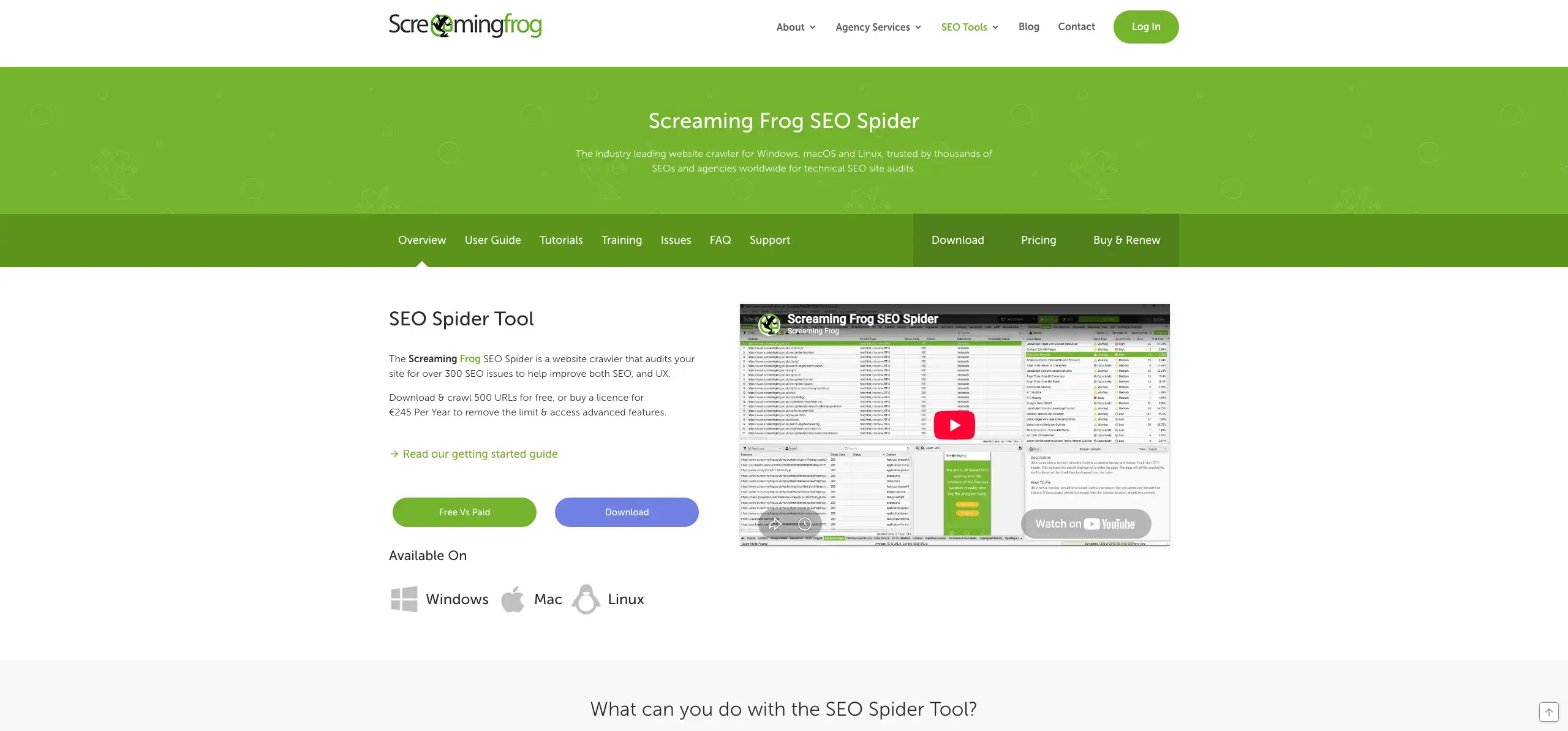
Best for: SEO audits
If you want a comprehensive look at your site's SEO health, Screaming Frog SEO Spider crawls your site and gives you a breakdown of SEO issues – like broken links, duplicate content, and missing metadata.
Key features
Site crawler: Scans your site for issues.
Broken link detection: Finds broken links that can affect SEO.
Metadata analysis: Checks your meta titles and descriptions.
Pros: Detailed SEO audits, ideal for spotting technical SEO issues.
Cons: The free version is limited to 500 URLs. A paid license costs £199/year.
7. LightHouse
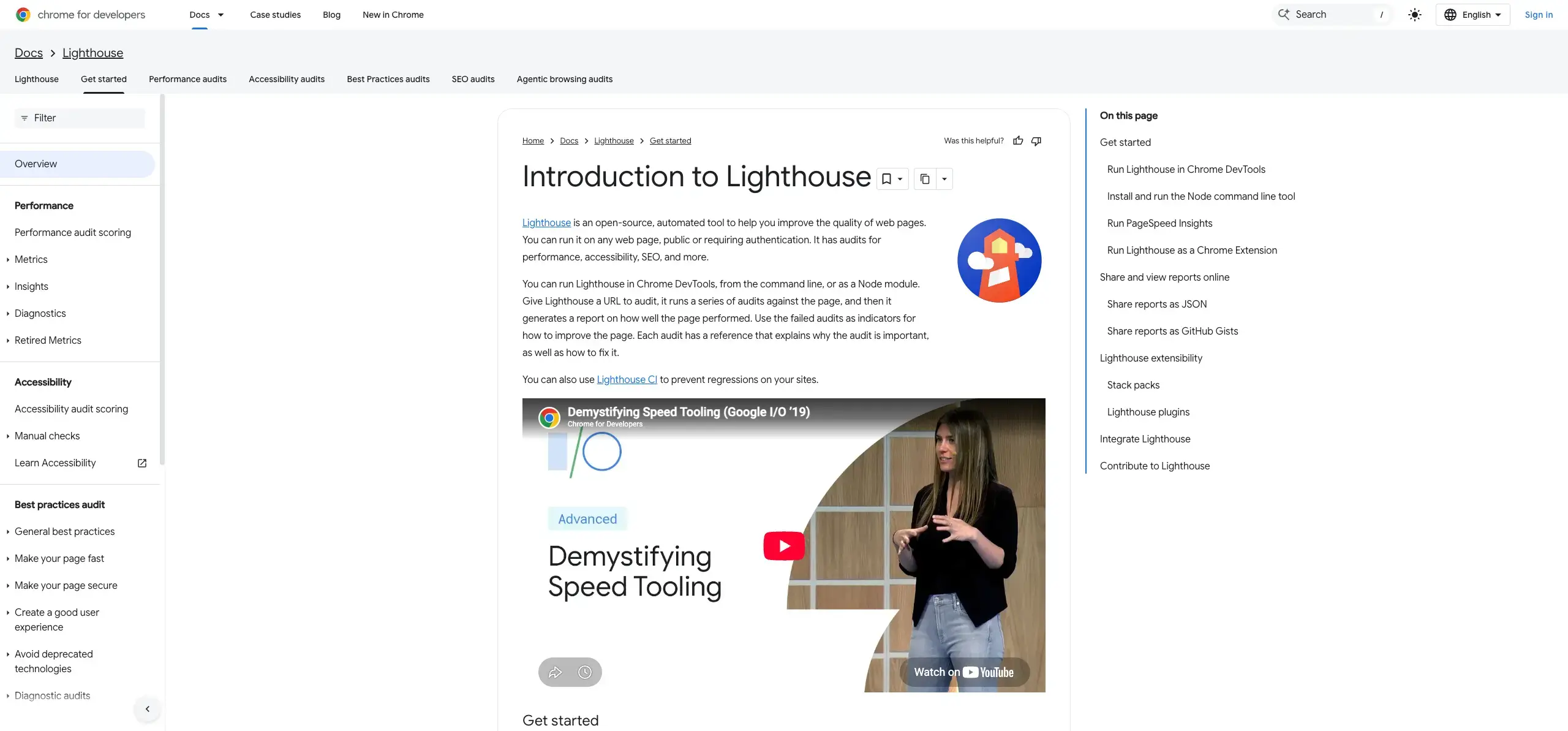
Best for: Assessing website performance and accessibility
Google Lighthouse is a free, open-source tool that audits performance, accessibility, SEO, and best practices in one go. You can run it straight from Chrome DevTools.
Key features
Audits in one report: Performance, accessibility, SEO, and best practices checks.
Clear scorecards: View results as easy-to-read scores.
Flexible ways to run it: Use it in DevTools, from the command line, or through PageSpeed Insights.
Pros: Multiple audits in one tool; fast and free.
Cons: Results are lab data from a single test, so they won't always match what real users experience.
8. Selenium
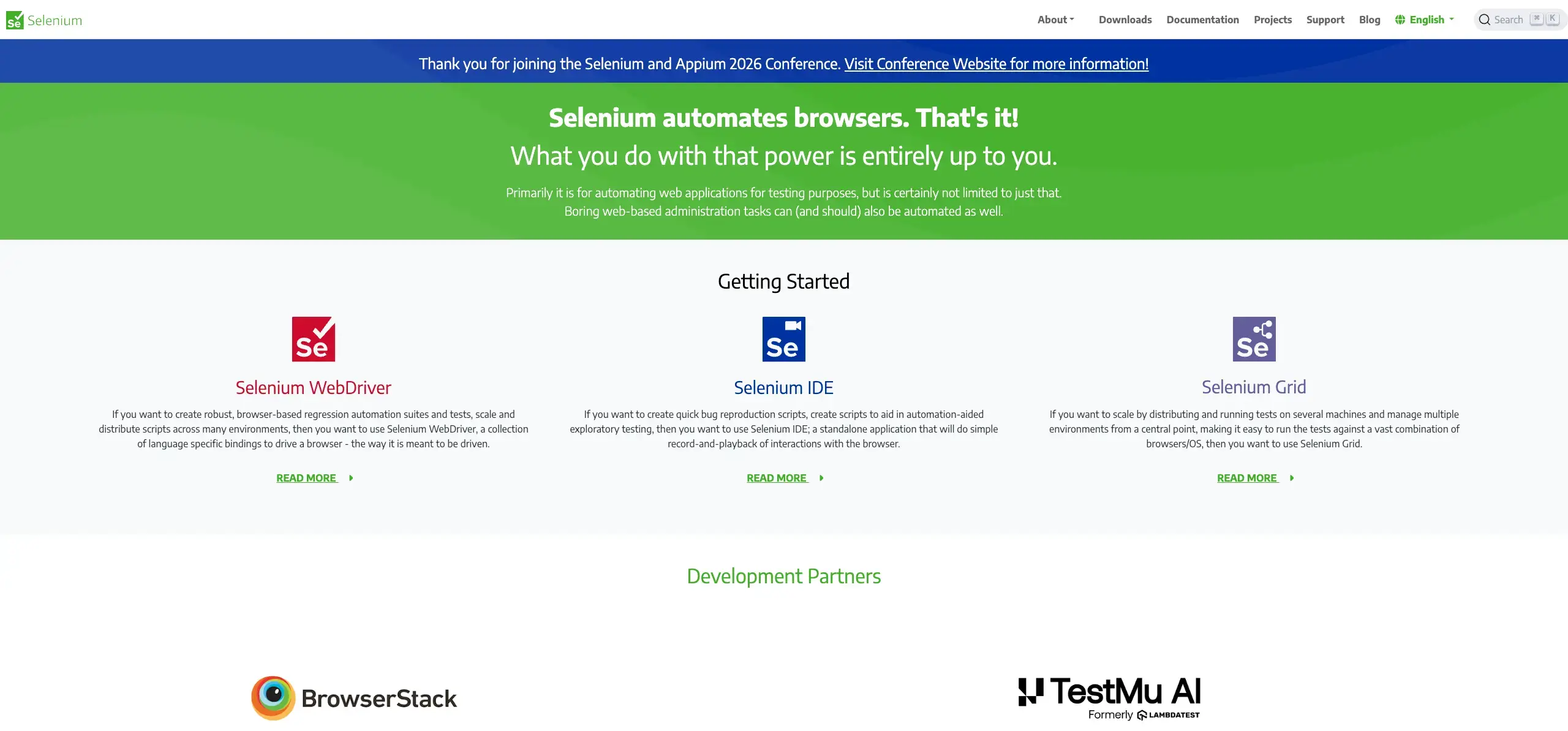
Best for: Automated testing
Selenium is a free, open-source tool for automating browser actions. It's widely used for large-scale testing across many pages.
Key features
Automated testing: Write scripts to test website actions.
Multi-browser support: Test on Chrome, Edge, Firefox, Safari, and more.
Language support: Write tests in Java, Python, C#, Ruby, JavaScript, or Kotlin.
Pros: An industry standard for automation, used by large QA teams.
Cons: Complex to set up if you're not familiar with coding.
9. Playwright
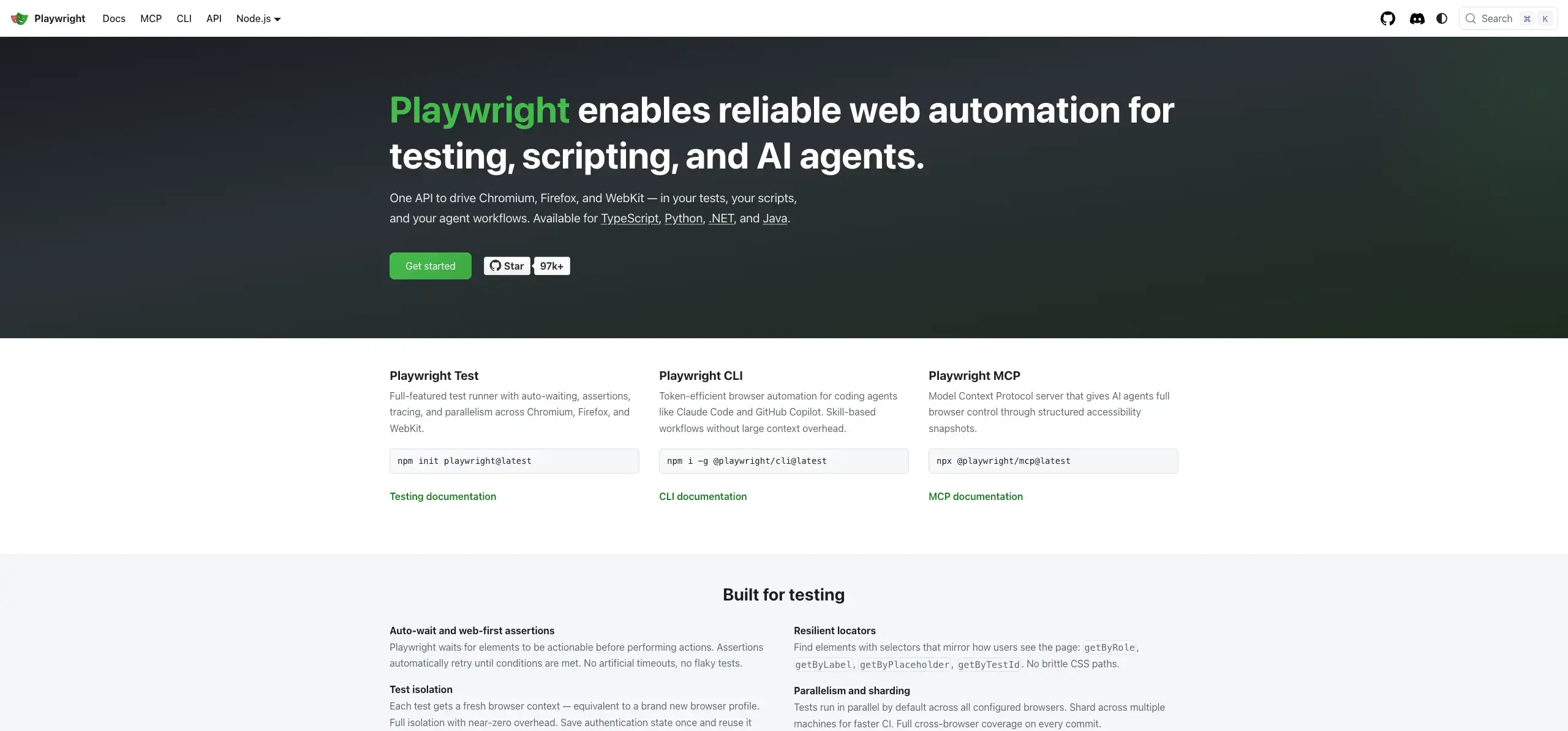
Best for: Automated end-to-end testing
Playwright is a free testing framework from Microsoft that automates real user journeys, like signing up or checking out, across modern browsers.
Key features
Cross-browser testing: Test in Chromium, Firefox, and WebKit on Windows, macOS, and Linux.
Auto-waiting: Waits for elements to be ready before acting, which makes tests more reliable.
Test generator and trace viewer: Record your actions to generate test code, and review failed tests step by step.
Pros: Modern, reliable automation with support for TypeScript, JavaScript, Python, .NET, and Java.
Cons: Requires coding knowledge to write and maintain tests.
10. WebPageTest
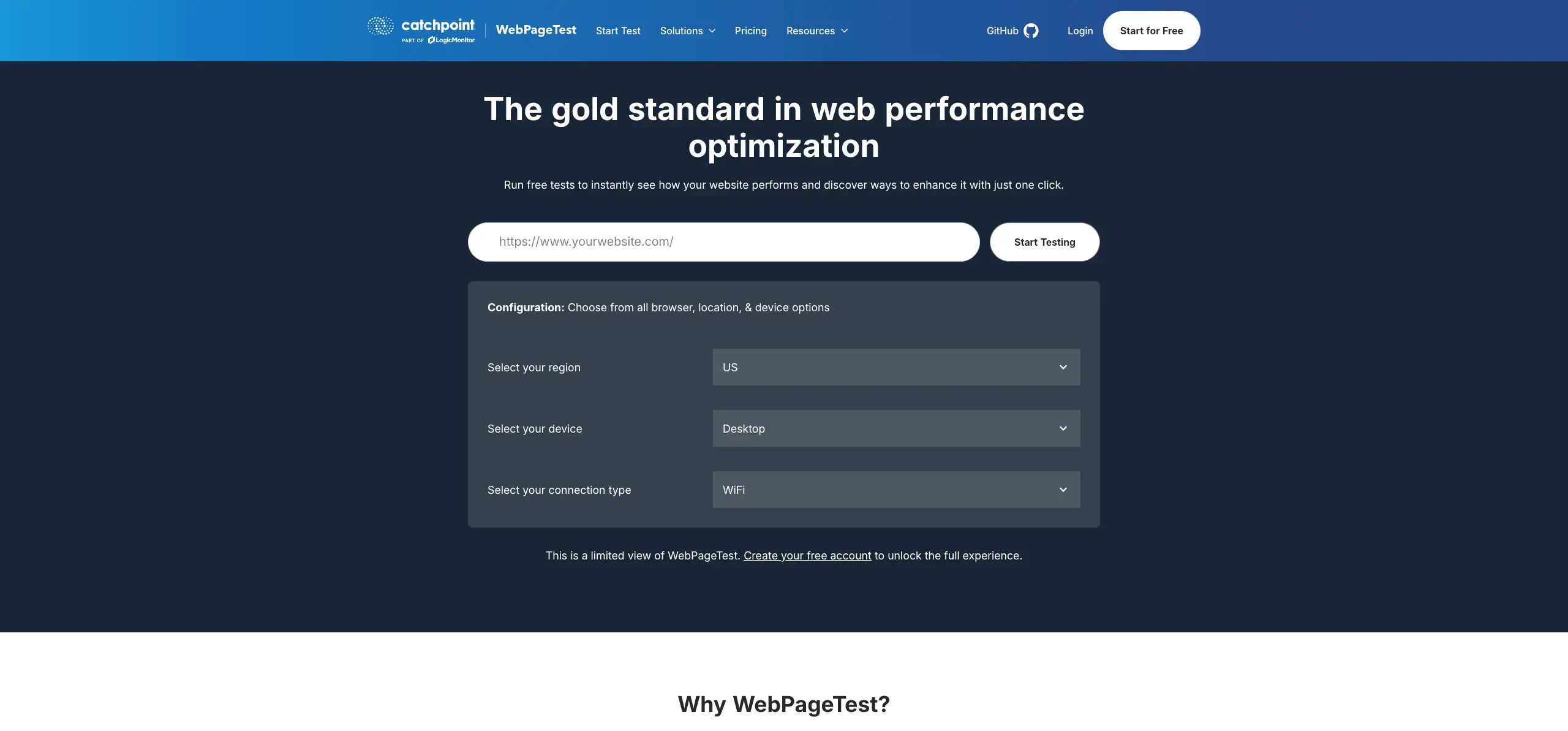
Best for: Load testing
If you want to see exactly how long your pages take to load, WebPageTest gives you the detail you need. You can run a free test without an account, or sign up for a free plan with 150 test runs a month.
Key features
Detailed load reports: See waterfall charts, a filmstrip, and video of each page load.
Global testing locations: Test your site from 30 locations.
First and repeat view: Compare a first visit with a repeat visit to check your caching.
Core Web Vitals: See LCP and CLS alongside CrUX data.
Pros: In-depth load testing for free.
Cons: The interface can feel technical for new users.
5 factors to consider when choosing a website testing tool
Choosing a website testing tool means finding one that fits your team's goals, resources, and workflow. Here are five factors to guide your decision.
1. Testing goals and priorities
Start with clarity: What are you trying to achieve with website testing?
Are you focused on improving site performance and speed?
Do you want to understand usability and user behavior?
Are you aiming to optimize your site across multiple devices and browsers?
Each tool has strengths in specific areas, so being clear about your goals will help you match them to the right tool.
2. Ease of setup and use
A powerful tool is only valuable if you can actually use it! Look for:
Straightforward onboarding: Can you get started without extensive training?
Clear dashboards: Is the interface easy to navigate?
Efficient workflows: Can you set up and run tests without technical roadblocks?
A tool that cuts manual steps saves your team time, so you can focus on acting on what you learn.
3. Participant recruitment and targeting
For usability testing, the quality of your results depends on who gives the feedback. Consider:
Audience targeting: Can you filter participants by demographics or behavior?
Recruitment speed: How quickly can you find participants for your tests?
Quality assurance: Are participants screened and verified?
A reliable pool of participants makes your results more accurate, especially when you need to validate a design or feature quickly.
4. Flexibility and scalability
Your website and your team's needs will grow, and your testing tool should grow with them. Look for:
Scalable plans: Can the tool handle more usage without big cost jumps?
Team collaboration: Does it support multiple users and shared results?
Ongoing updates: Is the platform regularly improved?
5. Pricing transparency and value
Pricing varies widely across testing tools, from free plans to enterprise contracts. Ask yourself:
Are there hidden costs for advanced features or participant recruitment?
Does the pricing match your testing frequency and team size?
Does the free plan or trial give you enough to evaluate the tool properly?
Clear, upfront pricing means you won't face unexpected costs as your testing needs grow.
5 must-have features of a great website testing tool
Once you've defined your goals, the next step is choosing a tool with the right capabilities. While every tool has its own strengths, these are the core features to look for.
1. Usability testing
Usability testing shows how real users interact with your website as they complete tasks. It uncovers friction points, confusing navigation, and unclear calls to action that analytics alone won't explain.
What to look for: Task-based testing, recordings of participants thinking aloud as they work, and follow-up questions that tell you why people struggled.
2. A/B testing capabilities
A/B testing shows different versions of a page to different visitors and measures which performs better against goals like conversion rate.
What to look for: Support for testing page variations with clear performance tracking. If you want to compare designs before you launch them, preference testing lets you ask participants which version they prefer and why.
3. Cross-browser and device testing
Your site might work perfectly in one browser but break in another. Cross-browser and device testing checks that your website looks and works the same, wherever people visit it.
What to look for: Testing on multiple browsers (like Chrome, Safari, and Firefox) and devices (desktop, mobile, and tablet), ideally on real devices.
4. Performance testing
Performance testing measures load times, server response, and the factors that affect how fast your site feels. Google measures this with three Core Web Vitals:
Largest Contentful Paint (LCP): How long the main content takes to load. Good is 2.5 seconds or less.
Interaction to Next Paint (INP): How quickly the page responds to clicks and taps. Good is 200 milliseconds or less.
Cumulative Layout Shift (CLS): How much the layout moves around as it loads. Good is 0.1 or less.
A page passes when all three are good for at least 75% of visits. Some tools show lab data from a single controlled test, while others show field data from real users. Lab data is useful for debugging, but field data is what tells you whether real visitors have a good experience. Google's guide to Core Web Vitals covers each metric in detail, and our article on SEO and UX explains how page speed fits into the wider user experience.
What to look for: Core Web Vitals reporting with field data, actionable recommendations (like optimizing images), and alerts for downtime or slowdowns.
5. Accessibility testing
Accessibility testing checks that your website works for everyone, including people with disabilities. It tests against standards like the Web Content Accessibility Guidelines (WCAG) to find barriers in your design.
What to look for: Checks for color contrast, screen reader compatibility, and keyboard navigation. Automated checkers find many issues, so pair them with manual testing to catch the rest.
Which website testing tools to use for your goal
Most teams get the best results by combining two or three tools. Here's where to start, depending on what you need to find out.
Your goal | Start with | Add |
|---|---|---|
Find out why people struggle on your site | Lyssna (live website testing) | Microsoft Clarity or Contentsquare, to see where problems happen at scale |
See where visitors click, scroll, and drop off | Microsoft Clarity or Contentsquare | Lyssna, to understand why |
Check page speed and Core Web Vitals | Google PageSpeed Insights | GTmetrix or WebPageTest, to diagnose what's slowing pages down |
Make sure your site works across browsers and devices | BrowserStack or BitBar | Playwright or Selenium, to automate repeated checks |
Check accessibility | WAVE | Lighthouse for quick audits, plus manual testing |
Compare page versions | Optimizely, Crazy Egg, or Adobe Target | Preference testing in Lyssna, to find out why one version works better |
Monitor uptime | Pingdom | Google PageSpeed Insights, for Core Web Vitals |
Manage test cases across a QA team | TestRail | Your automation tool of choice |
How Lyssna can help
Performance, compatibility, and accessibility tools tell you whether your site works. They can't tell you whether people understand it, trust it, or can find what they came for. That's where Lyssna fits.
With live website testing, you give participants tasks to complete on your live site – or a competitor's – and watch recordings of their screen, audio, and camera as they talk through what they're seeing. With mobile testing, participants can complete studies on their own phones. You can recruit from our research panel of 690,000+ participants across 124 countries, using 395+ targeting options, or bring your own participants.
As Joe Formica, Design Advocate at Lyssna, explained in our live website testing workshop:
"With live website testing, you're not asking users to imagine things. You're not asking them to fill in the blanks with what they think would be useful … they're seeing the exact experience the exact same way that they're going to use it in the wild."
Testing with real users can also challenge what you think you know. In our fee transparency study comparing Wise and Revolut, online reviews had flagged Wise for hidden fees. When participants tested both sites using live website testing, the actual experience told a different story.
Pair Lyssna with the tools above: use analytics to spot where problems happen, then run a Lyssna study to find out why. For practical advice on getting started, read our expert tips for live website testing.

FAQs about website testing tools

Pete Martin
Content writer
Pete Martin is a content writer for a host of B2B SaaS companies, as well as being a contributing writer for Scalerrs, a SaaS SEO agency. Away from the keyboard, he’s an avid reader (history, psychology, biography, and fiction), and a long-suffering Newcastle United fan.

You may also like these articles