13 Feb 2026
|18 min
UI design tools
Discover the best UI design tools to enhance your workflow, from prototyping to usability testing. Compare features, pricing, and user reviews to find the perfect fit for your design needs.
Choosing the right UI design tools can make or break your design workflow. Whether you're crafting wireframes, building interactive prototypes, or handing off pixel-perfect specs to developers, the tools you use directly impact how efficiently you can validate ideas with real users and iterate based on feedback.
The landscape of UI design tools has evolved dramatically over the past few years. What once required multiple expensive applications can now be accomplished with browser-based platforms that enable real-time collaboration across distributed teams. AI-powered features are transforming how designers work, from generating layout suggestions to automating repetitive tasks.
This guide covers 25 essential UI design tools across five key categories, helping you build a toolkit that supports every stage of the design process – from initial concept exploration through user testing and developer handoff.
Please note that pricing included in this article is in USD and is based on a per/seat plan basis, unless stated otherwise
Quick reference: All UI design tools at a glance
Tool | Category | Best for | Starting price |
|---|---|---|---|
Balsamiq | Wireframing | Rapid low-fidelity wireframing | From $12/month |
Whimsical | Wireframing | Collaborative wireframing and flowcharts | Free plan; Pro plan from $10/month |
Moqups | Wireframing | All-in-one diagramming and wireframing | Free plan; Starter plan from $8/month |
Figma | Prototyping | Collaborative design and prototyping | Free plan; Professional from $16/month |
Sketch | Prototyping | Mac-based design teams | From $12/month |
Adobe XD | Prototyping | Teams using Adobe Creative Cloud | Included with CC All Apps |
Framer | Prototyping | High-fidelity interactive prototypes | Basic plan from $10/month |
ProtoPie | Prototyping | Complex micro-interactions and multi-device prototypes | Free plan; Basic plan from $25/month |
Axure RP | Prototyping | Enterprise-level documentation and complex prototypes | Pro plan from $29/month |
Marvel | Prototyping | Presentation and stakeholder feedback | Free plan; Pro plan from $12/month |
Principle | Prototyping | Mac users creating animated interactions | $129 one-time purchase |
Adobe Photoshop | Visual design | Image editing and manipulation | From $22.99/month |
Adobe Illustrator | Visual design | Vector graphics and icon design | From $22.99/month |
Canva | Visual design | Quick graphics and non-designers | Free plan; Pro plan from $14.99/month |
Linearity | Visual design | Modern, free vector design | Free plan; Pro plan from $83/month |
Lyssna | Usability testing | Rapid user testing integrated with design workflow | Free plan; paid plans start at $165/month (5 seats) |
Maze | Usability testing | Quantitative usability metrics | Free plan; Starter plan from $99/month (5 seats) |
UserTesting | Usability testing | Enterprise-scale research programs | Custom pricing |
Hotjar | Usability testing | Understanding user behavior on live sites | Free plan; Growth plan from $39/month |
Lookback | Usability testing | Moderated remote research | Freelance |
Zeplin | Handoff & collaboration | Design-to-development handoff | Free plan; Advance plan from $12/month |
Storybook | Handoff & collaboration | Component documentation and testing | Free and open source |
Miro | Handoff & collaboration | Collaborative workshops and ideation | Free plan; Starter plan from $8/month |
Notion | Handoff & collaboration | Design documentation and knowledge management | Free plan; Plus plan from $10/month |
What are UI design tools?
UI design tools are software applications that help designers create, prototype, and test user interfaces for digital products. These tools range from simple wireframing applications to comprehensive platforms that support the entire design-to-development workflow.
The right combination of tools enables design teams to:
Visualize ideas quickly through sketches, wireframes, and mockups.
Create interactive prototypes that simulate real user experiences.
Test designs with actual users before investing in development.
Collaborate effectively with stakeholders, developers, and other designers.
Maintain consistency through shared design systems and component libraries.
Why your tool selection matters
The tools you choose affect more than just your personal productivity. They shape how your entire team collaborates, how quickly you can gather user feedback, and ultimately how user-centered your final products become.
This highlights an important consideration: your UI design tools don't exist in isolation. They need to work together seamlessly, especially when connecting design work to user research and testing.
Categories of UI design tools
UI design tools fall into five main categories, each serving a distinct purpose in the design workflow:
Category | Purpose | When to use |
|---|---|---|
Wireframing tools | Create basic skeletal blueprints focused on layout and content hierarchy | Early concept exploration and information architecture |
Prototyping tools | Add interactivity to simulate user experience | Testing user flows and gathering feedback |
Visual design tools | Craft the visual appearance of interfaces | Creating high-fidelity mockups and final designs |
Usability testing tools | Gather user feedback and identify usability issues | Validating designs with real users |
Handoff and collaboration tools | Facilitate communication between designers and developers | Preparing designs for implementation |
Many modern UI design tools span multiple categories. Figma, for example, handles wireframing, visual design, prototyping, and developer handoff within a single platform. This showcases the interconnected nature of the UI design process – and means you may not need separate tools for each function.
Wireframing tools
Wireframing tools help you quickly explore layout options and establish content hierarchy before investing time in visual details. They're essential for early-stage concept validation and stakeholder alignment.
Balsamiq
Best for: Rapid low-fidelity wireframing
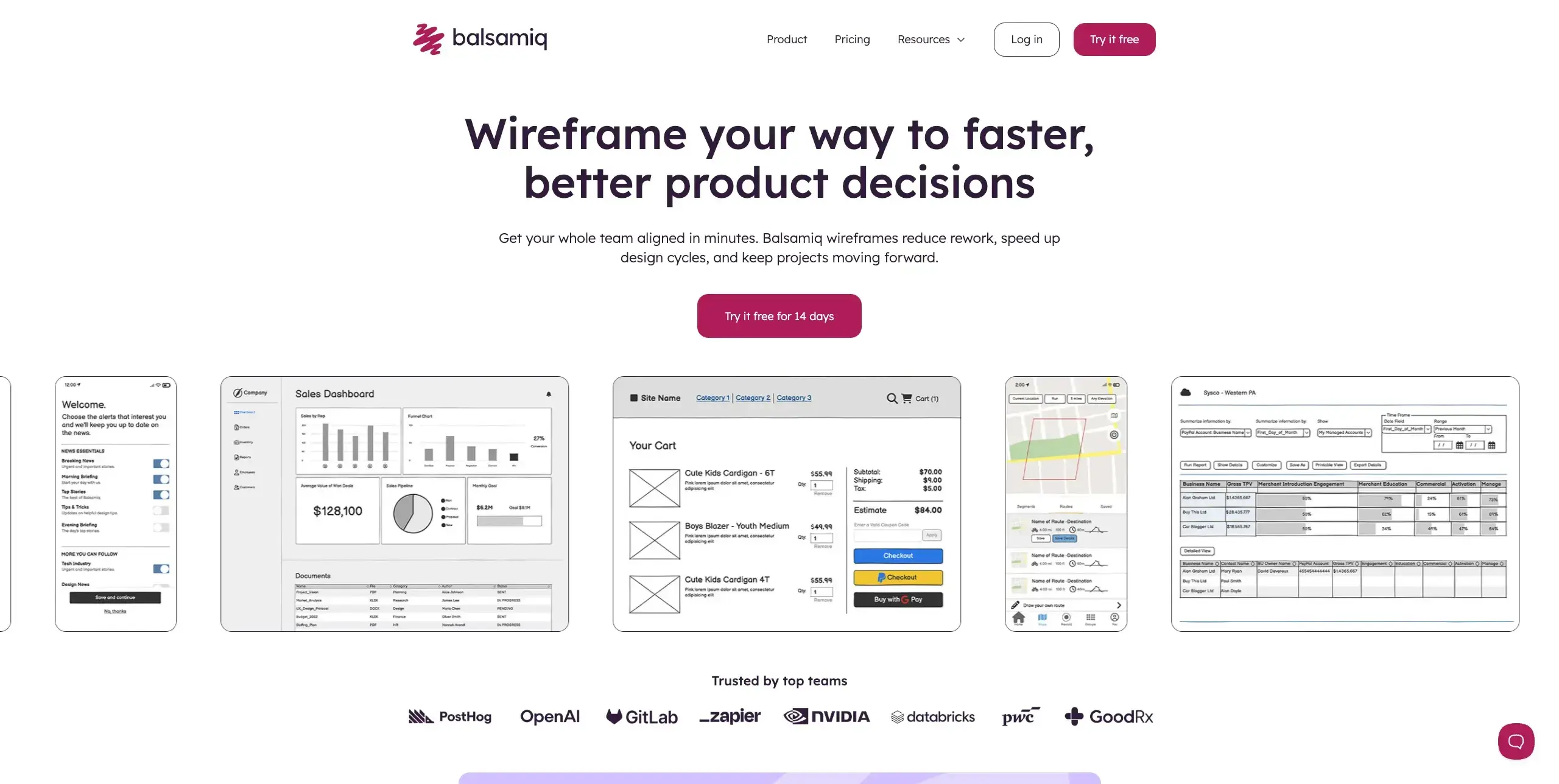
Balsamiq deliberately uses a hand-drawn aesthetic that keeps conversations focused on structure rather than visual polish. This makes it ideal for early brainstorming sessions where you want stakeholders to focus on functionality rather than colors and fonts.
Key features:
Sketch-style UI components that discourage premature visual discussions
Drag-and-drop interface with extensive component library
Built-in linking for basic click-through prototypes
Cloud and desktop versions available
Pricing: From $12/month
Whimsical
Best for: Collaborative wireframing and flowcharts
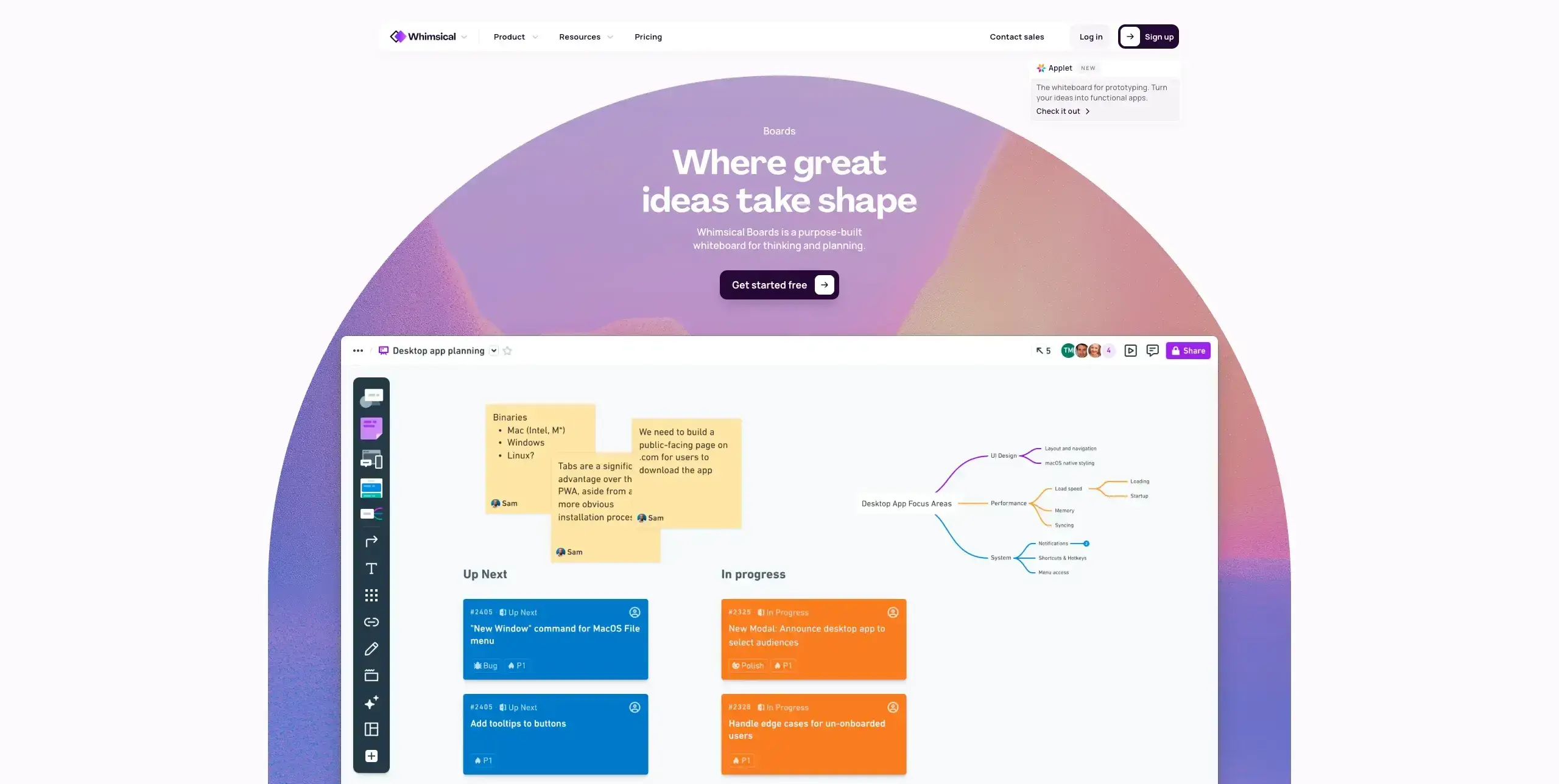
Whimsical combines wireframing with flowcharts, mind maps, and documentation in a single workspace. It's particularly useful for teams who need to map user flows alongside their wireframes.
Key features:
Clean, intuitive interface with minimal learning curve
Real-time collaboration with commenting
Integrated flowchart and mind mapping tools
Sticky notes for collaborative ideation
Pricing: Free plan available; Pro plan from $10/month
Moqups
Best for: All-in-one diagramming and wireframing
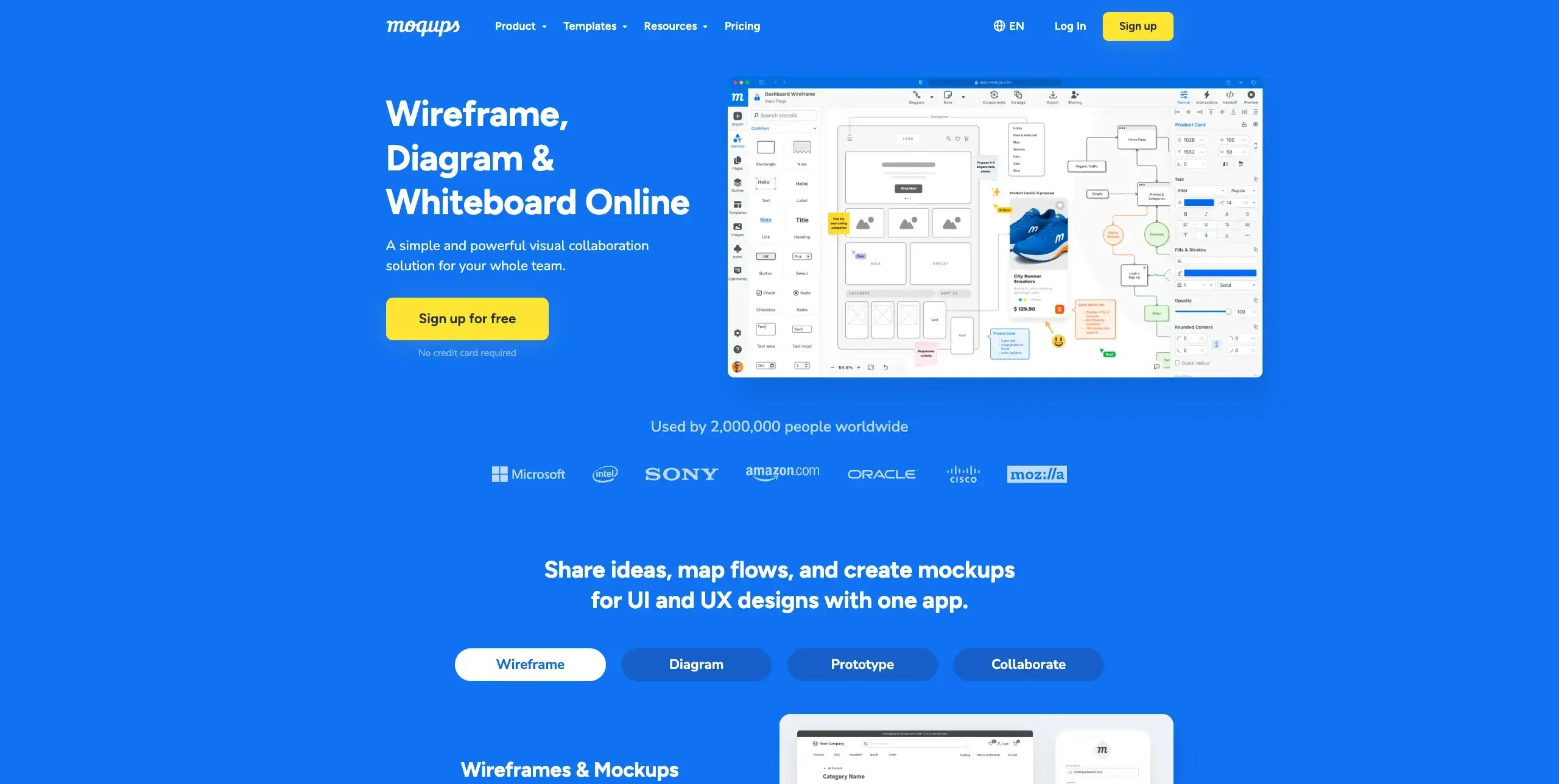
Moqups offers wireframing alongside flowcharts, diagrams, and basic prototyping. It's a solid choice for teams who need versatility without the complexity of enterprise tools.
Key features:
Extensive stencil library for various device types
Real-time collaboration
Integration with popular project management tools
Export options for presentations and documentation
Pricing: Free plan available; Starter plan from $8/month
Prototyping tools
Prototyping tools transform static designs into interactive experiences that can be tested with real users. They're crucial for validating design decisions before development begins.
Figma
Best for: Collaborative design and prototyping
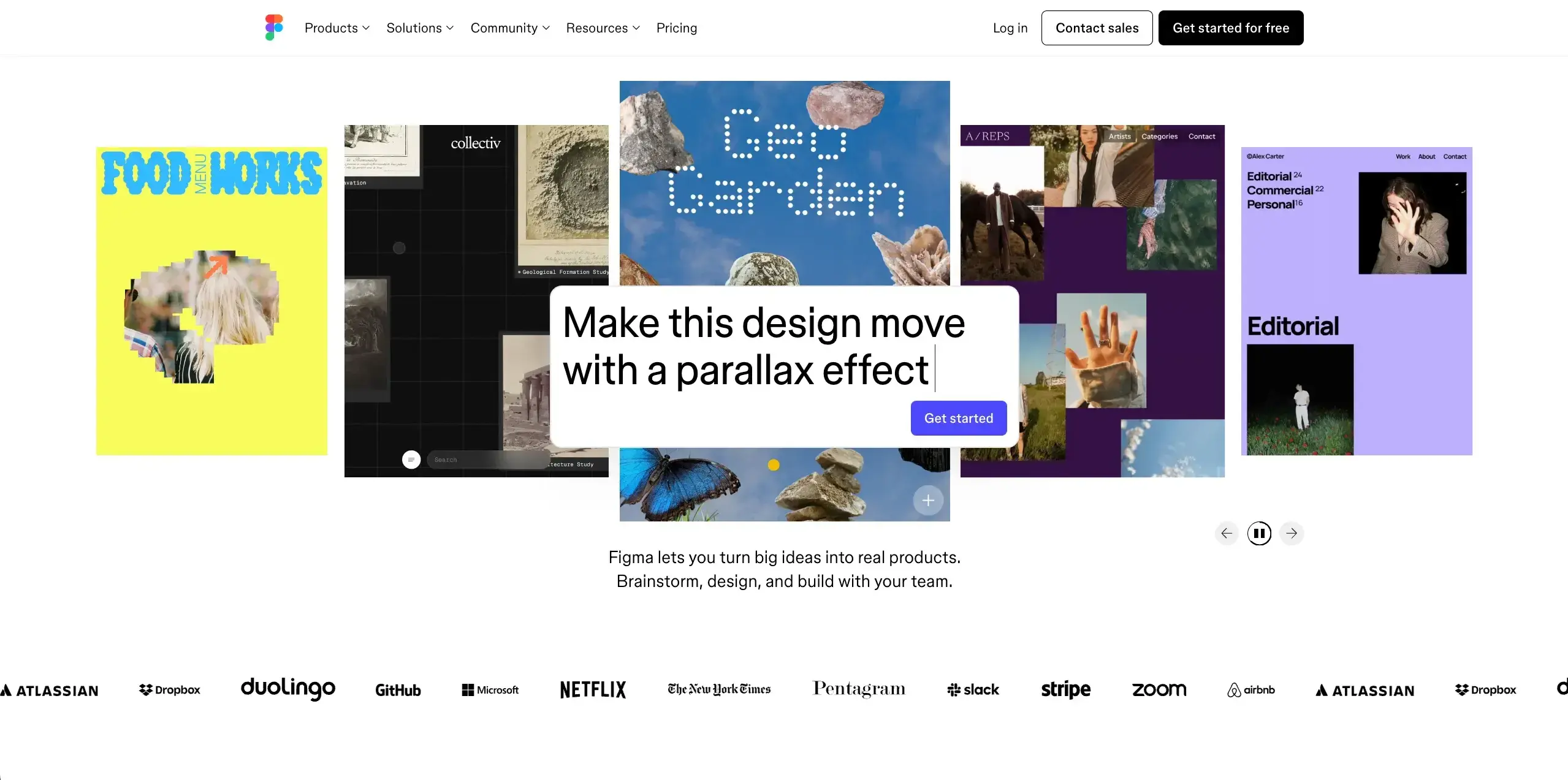
Figma has become the industry standard for UI design, offering powerful prototyping capabilities alongside its design features. Its browser-based approach enables seamless collaboration across teams and locations.
As one G2 reviewer notes: "I particularly appreciate Figma's real-time collaboration and cross-platform compatibility features. Real-time collaboration streamlines teamwork, allowing us to work together seamlessly without worrying about version control. Additionally, its cross-platform compatibility ensures that I can access and edit designs from any device, providing flexibility and convenience."
Key features:
Advanced prototyping with smart animate and component variants
Real-time multiplayer editing
Extensive plugin ecosystem
Dev mode for streamlined handoffs
FigJam for collaborative brainstorming
Pricing: Free plan available; Professional from $16/month for a full seat
Sketch
Best for: Mac-based design teams
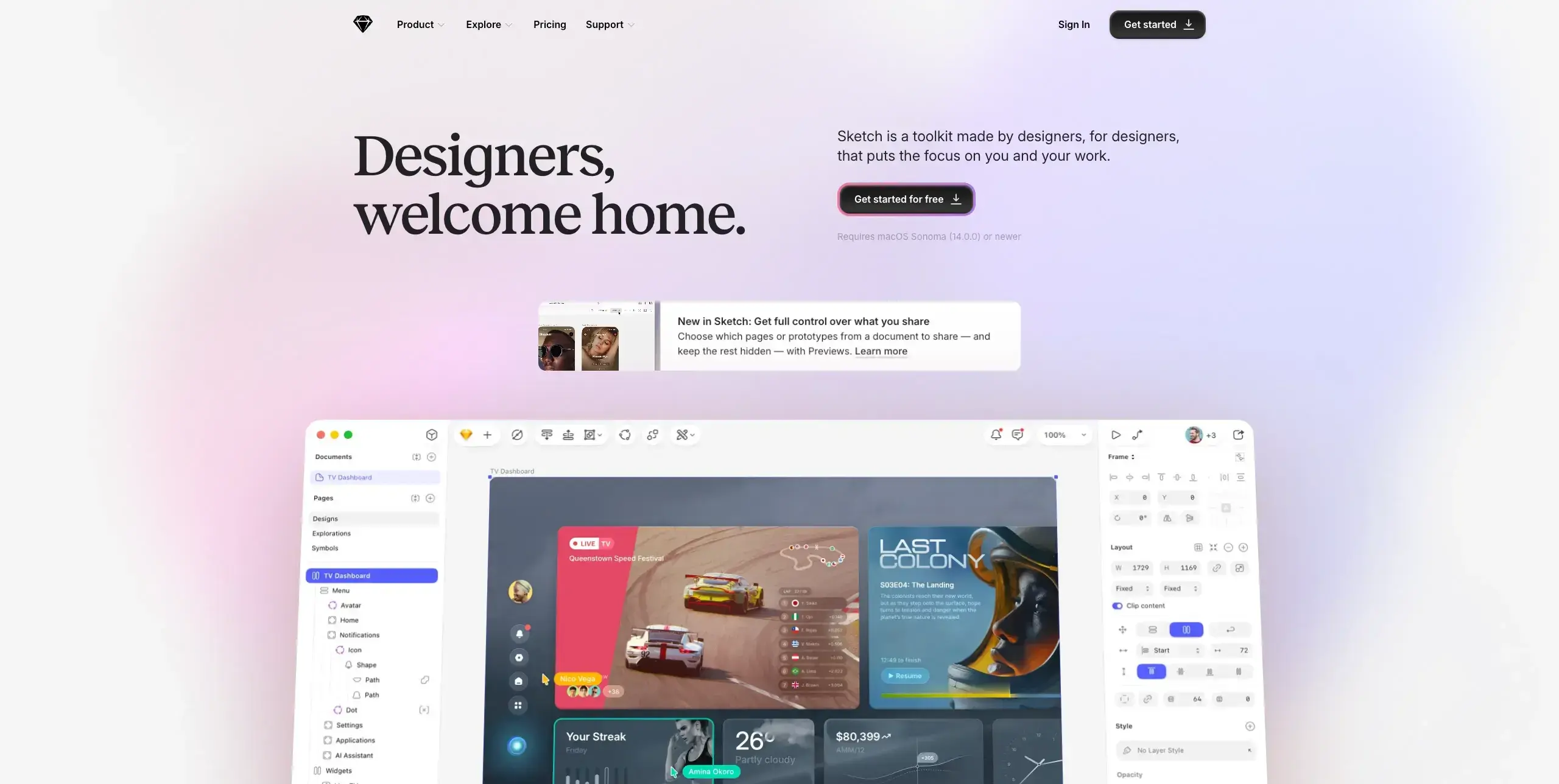
Sketch pioneered many features now standard in UI design tools. While it's Mac-only, it remains popular among teams who prefer native application performance and its mature plugin ecosystem.
Key features:
Powerful symbol and library system
Extensive third-party plugin support
Sketch Cloud for sharing and collaboration
Smart Layout for responsive components
Pricing: From $12/month
Adobe XD
Best for: Teams already using Adobe Creative Cloud
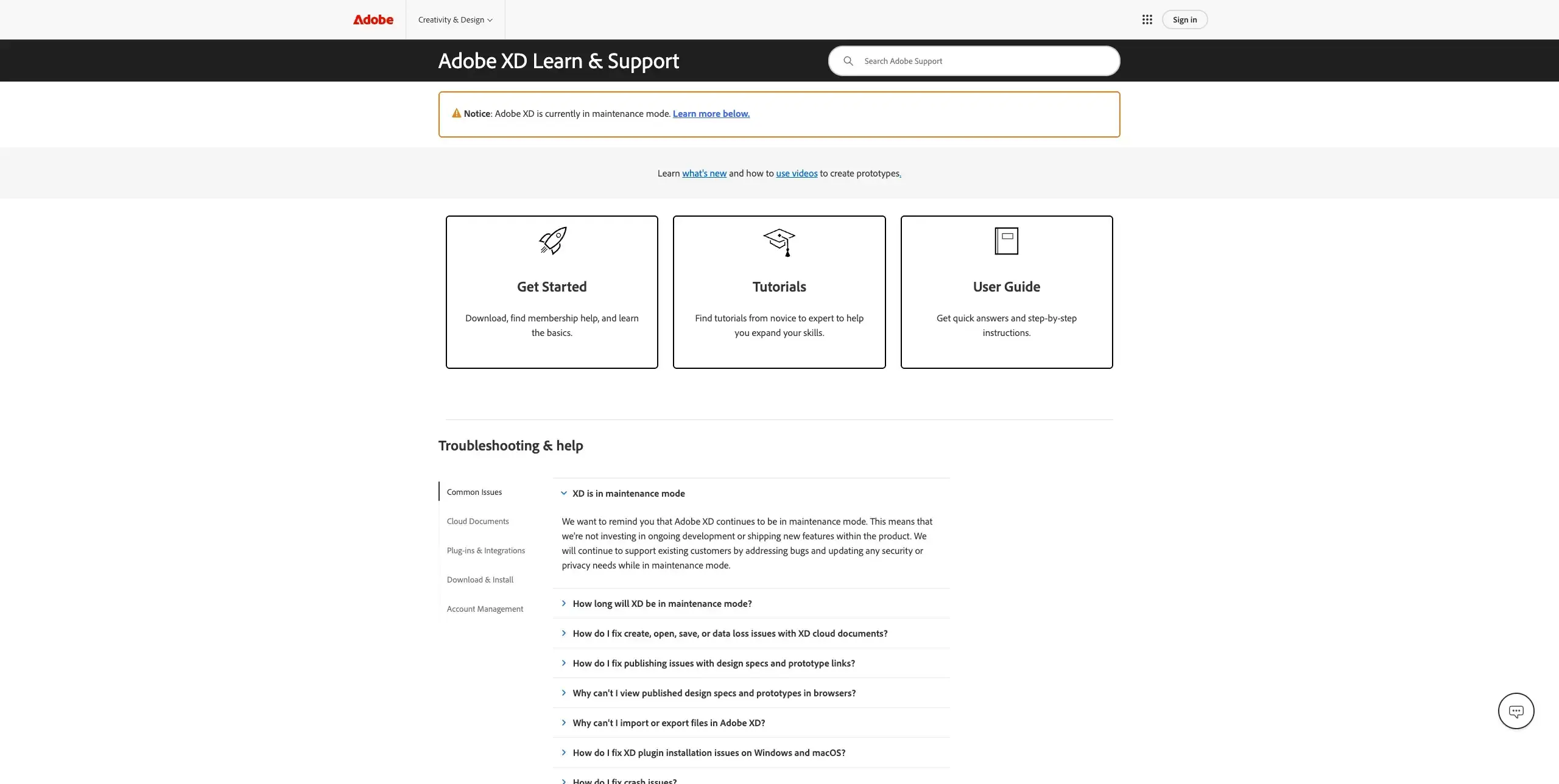
Important note: Adobe XD is currently in maintenance mode, meaning Adobe is not investing in ongoing development or shipping new features. They continue to support existing customers with bug fixes and security updates, but XD is now only available through the Creative Cloud All Apps subscription.
If you're already invested in the Adobe ecosystem, XD may still serve your needs. However, for new projects, consider alternatives like Figma or Framer that are actively developing new features.
Key features:
Voice prototyping capabilities
Auto-animate for micro-interactions
Integration with other Adobe tools
Repeat grid for efficient design
Pricing: Included with Creative Cloud All Apps subscription
Framer
Best for: High-fidelity interactive prototypes
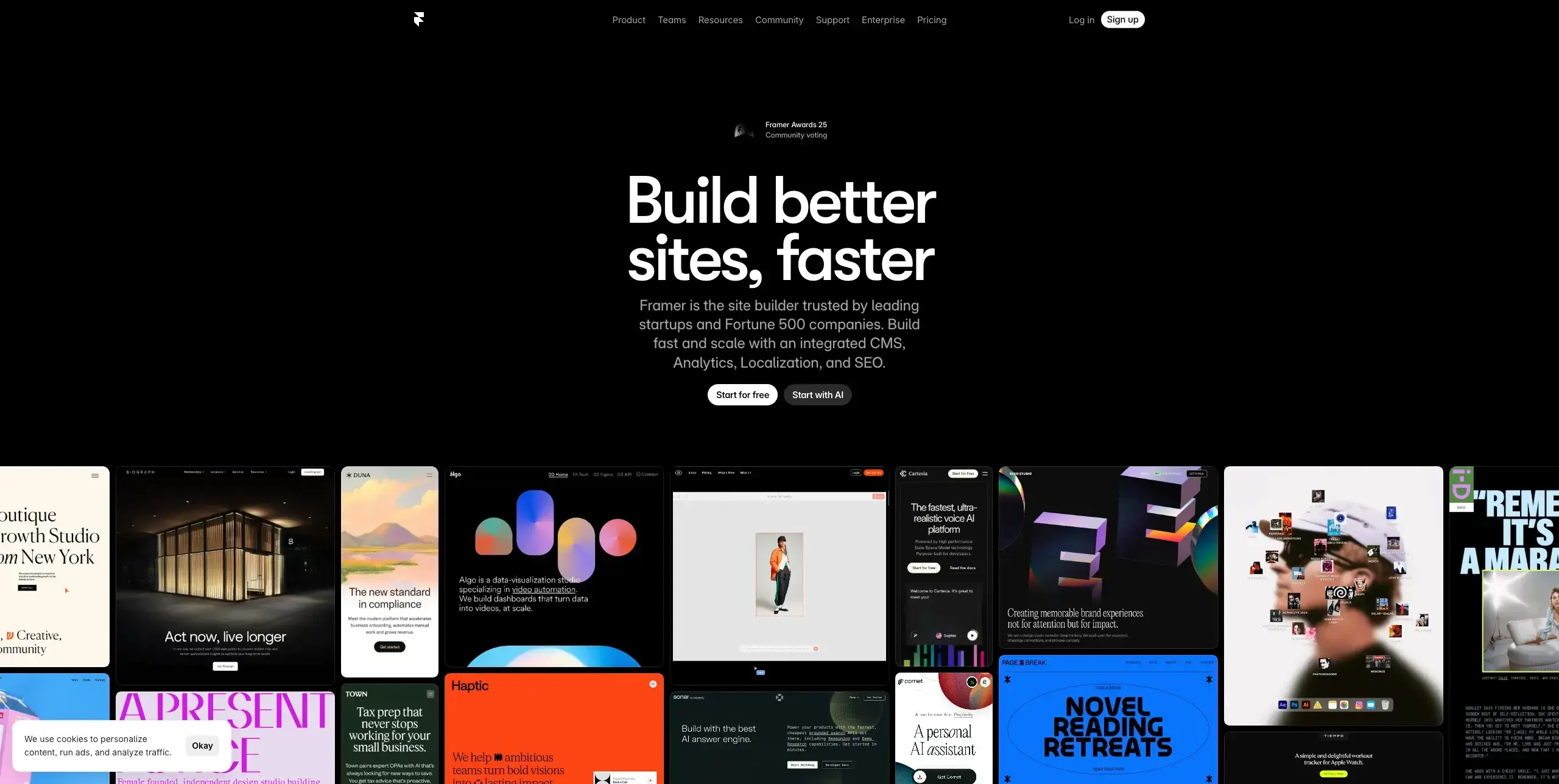
Framer bridges the gap between design and code, enabling designers to create production-ready interactions and animations. It's particularly powerful for teams building complex, interactive experiences.
Key features:
Code-based components for advanced interactions
Built-in CMS for content management
Responsive design with breakpoints
Direct publishing to web
Pricing: Basic plan from $10/month
ProtoPie
Best for: Complex micro-interactions and multi-device prototypes
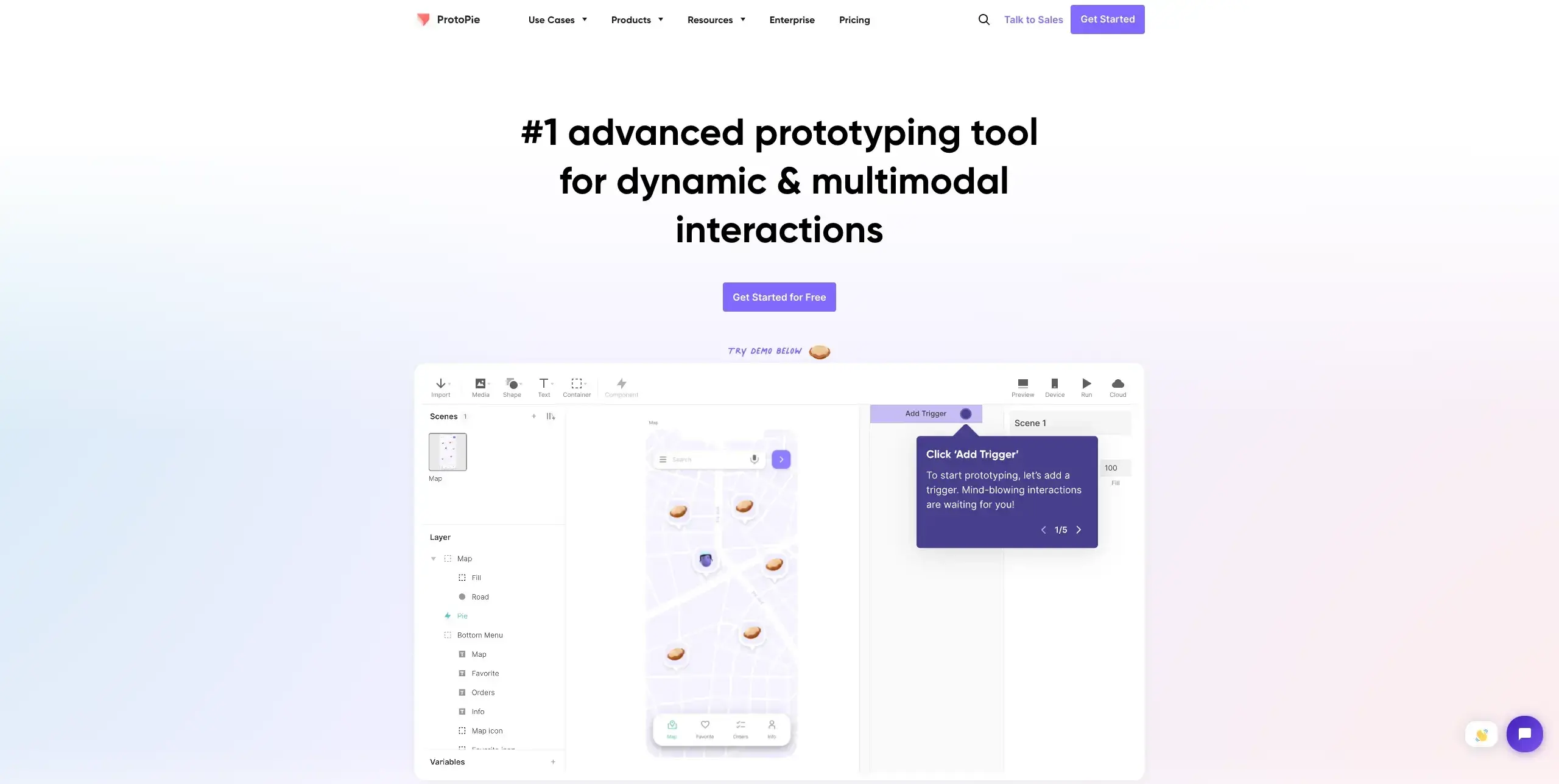
ProtoPie excels at creating realistic prototypes with sensor-based interactions, making it ideal for mobile apps and IoT products that need to respond to device capabilities.
Key features:
Sensor-based interactions (gyroscope, sound, camera)
Multi-device prototyping for connected experiences
No coding required for complex interactions
Integration with Figma, Sketch, and Adobe XD
Pricing: Free plan available; Basic plan from $25/month
Axure RP
Best for: Enterprise-level documentation and complex prototypes
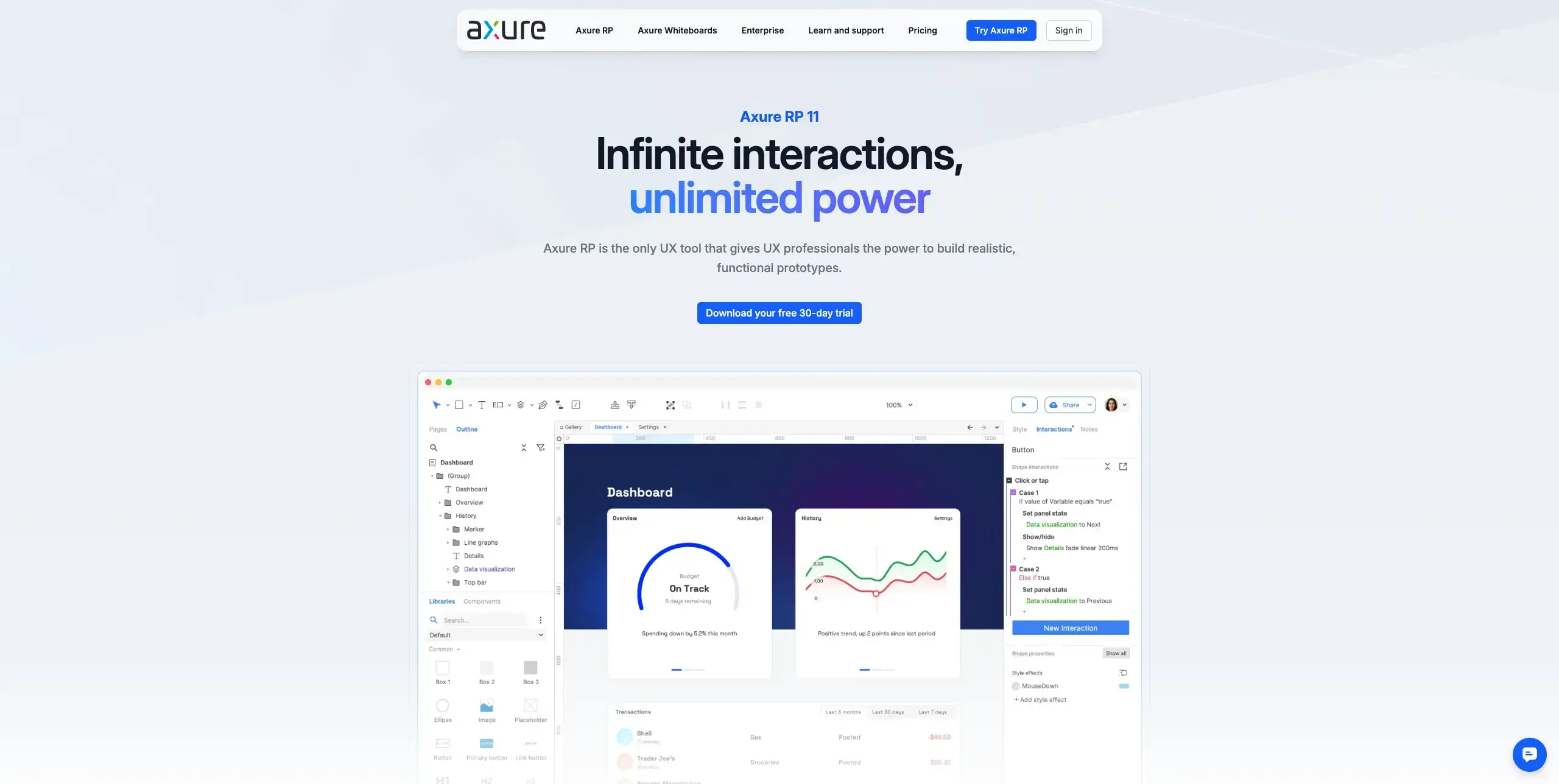
Axure RP remains the go-to choice for teams who need to create detailed functional specifications alongside their prototypes. It's particularly popular in enterprise environments with complex approval processes.
Key features:
Conditional logic and dynamic content
Comprehensive documentation capabilities
Team collaboration with version control
Extensive widget libraries
Pricing: Pro plan from $29/month
Marvel
Best for: Presentation and stakeholder feedback
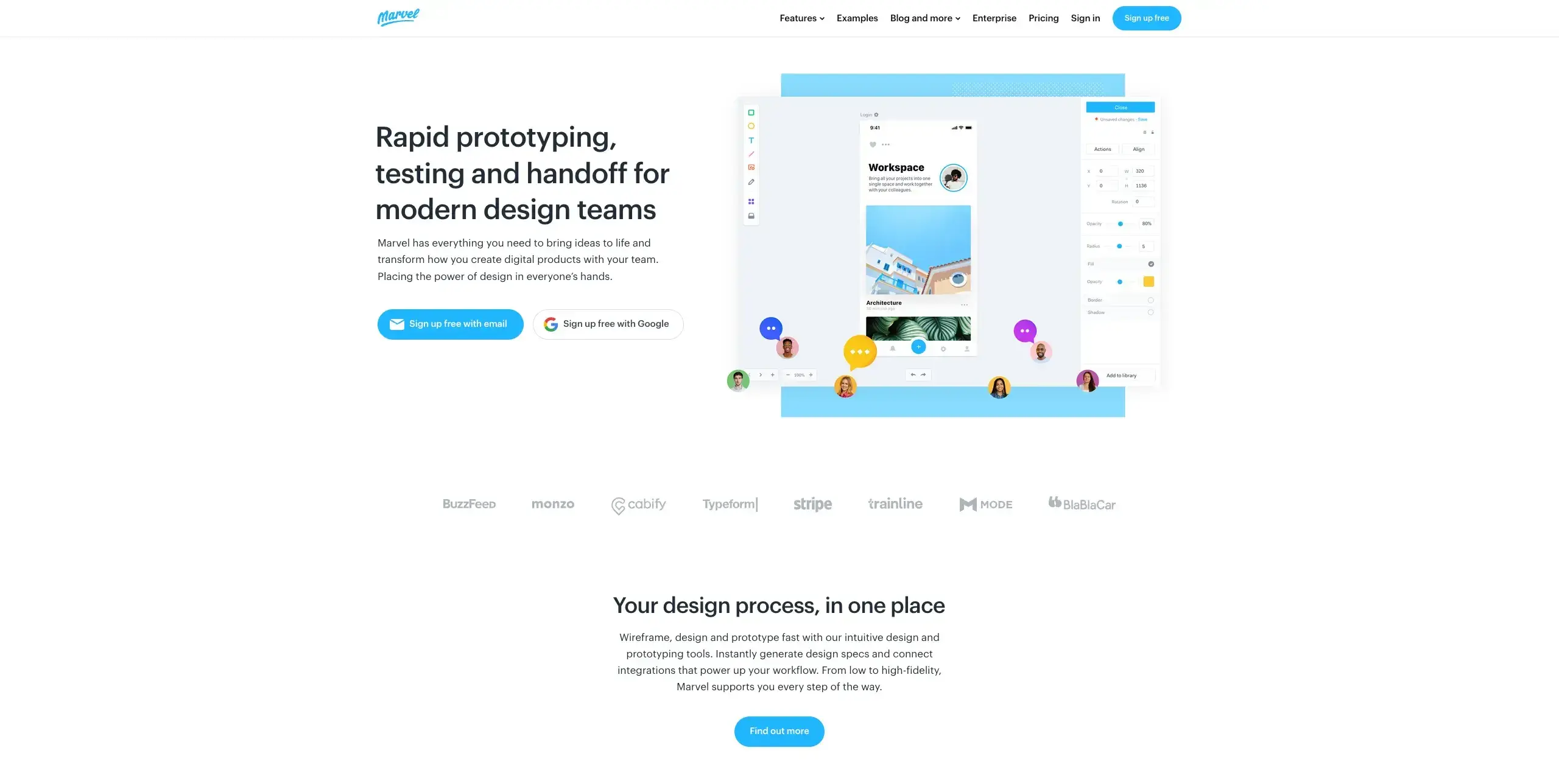
Marvel makes it easy to create clickable prototypes from static designs and gather feedback from stakeholders. Its straightforward interface focuses on rapid prototyping without overwhelming complexity.
Key features:
Simple click-through prototypes from uploaded designs
Commenting and annotation tools
User testing features built-in
Handoff specs for developers
Pricing: Free plan available; Pro from $12/month
Principle
Best for: Mac users creating animated interactions
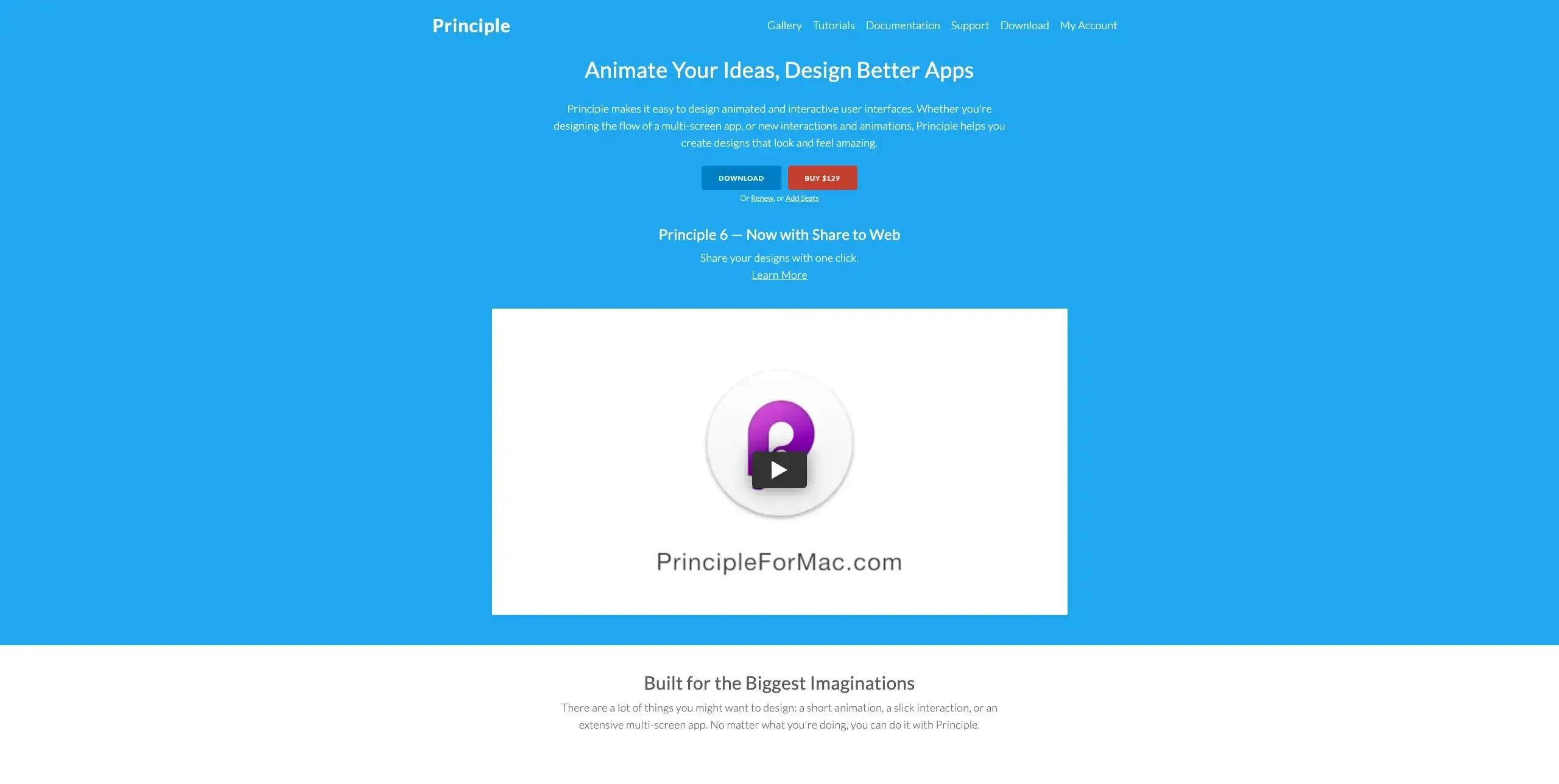
Principle is a Mac-only tool focused specifically on creating animated and interactive designs. It's excellent for designing micro-interactions and transitions that bring interfaces to life.
Key features:
Timeline-based animation
Component-based design
Direct import from Figma and Sketch
Easy export for sharing
Pricing: $129 one-time purchase
Visual design tools
Visual design tools help you create the final look and feel of your interfaces, from typography and color to iconography and imagery.
Adobe Photoshop
Best for: Image editing and manipulation
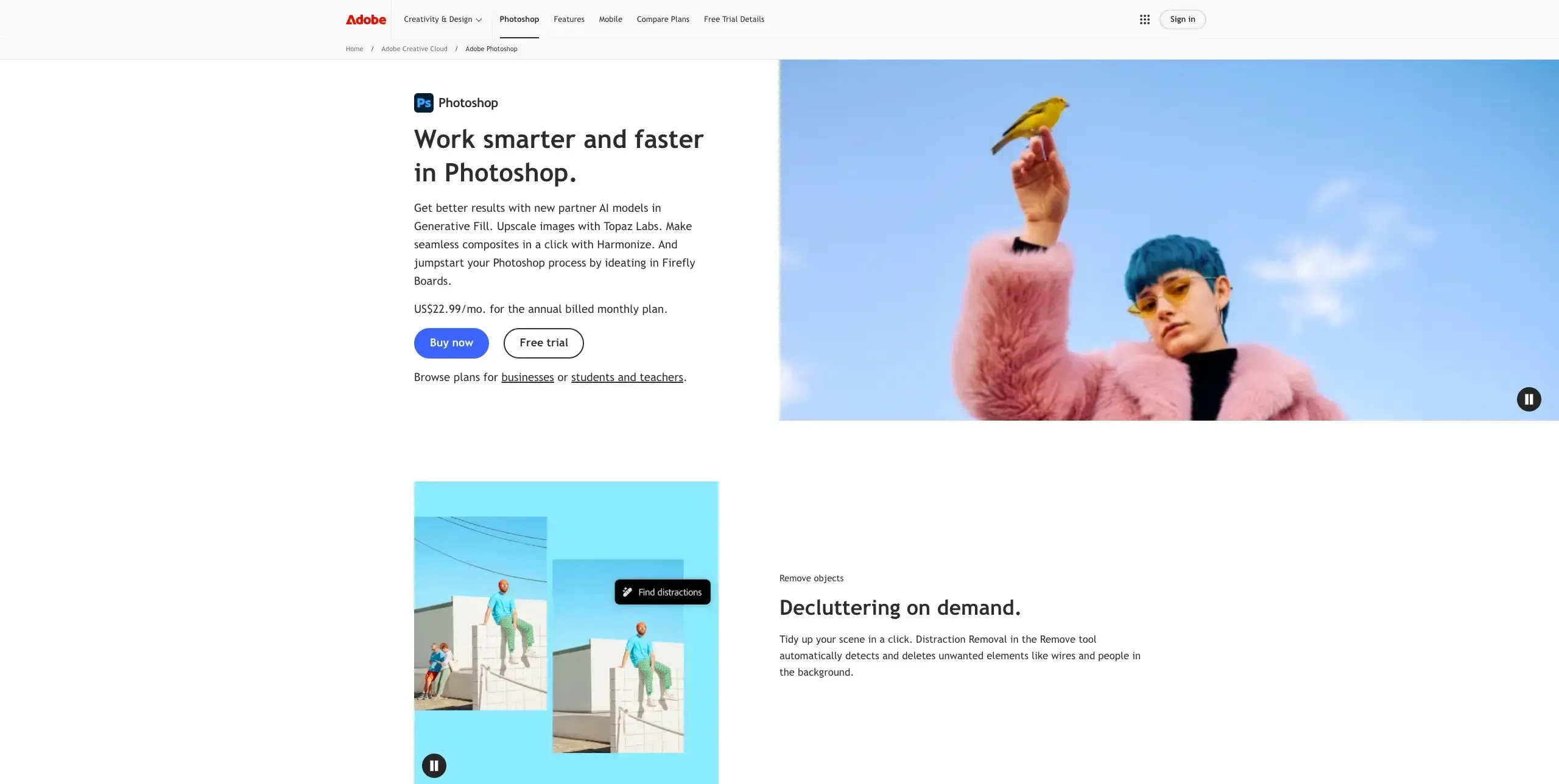
While not specifically a UI design tool, Photoshop remains useful for creating and editing images, icons, and graphics that become part of your interface designs.
Key features:
Industry-leading image editing capabilities
Extensive filter and effect options
AI-powered features for content-aware editing
Integration with other Adobe tools
Pricing: From $22.99/month
Adobe Illustrator
Best for: Vector graphics and icon design
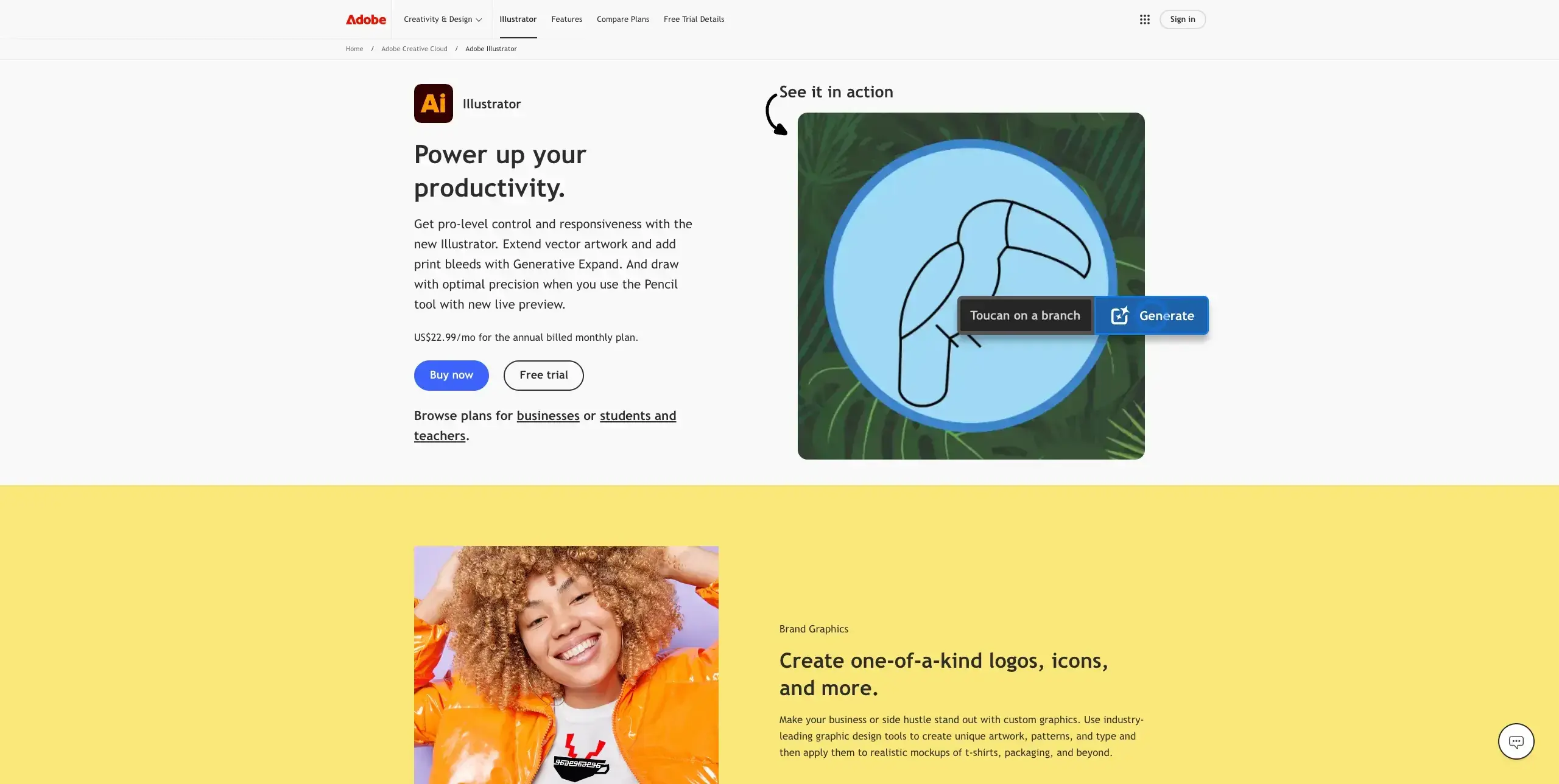
Illustrator is the standard for creating scalable vector graphics, making it ideal for designing icons, illustrations, and other UI elements that need to work across different screen sizes.
Key features:
Precision vector drawing tools
Extensive typography controls
Asset export for multiple screen densities
Creative Cloud library integration
Pricing: From $22.99/month
Canva
Best for: Quick graphics and non-designers
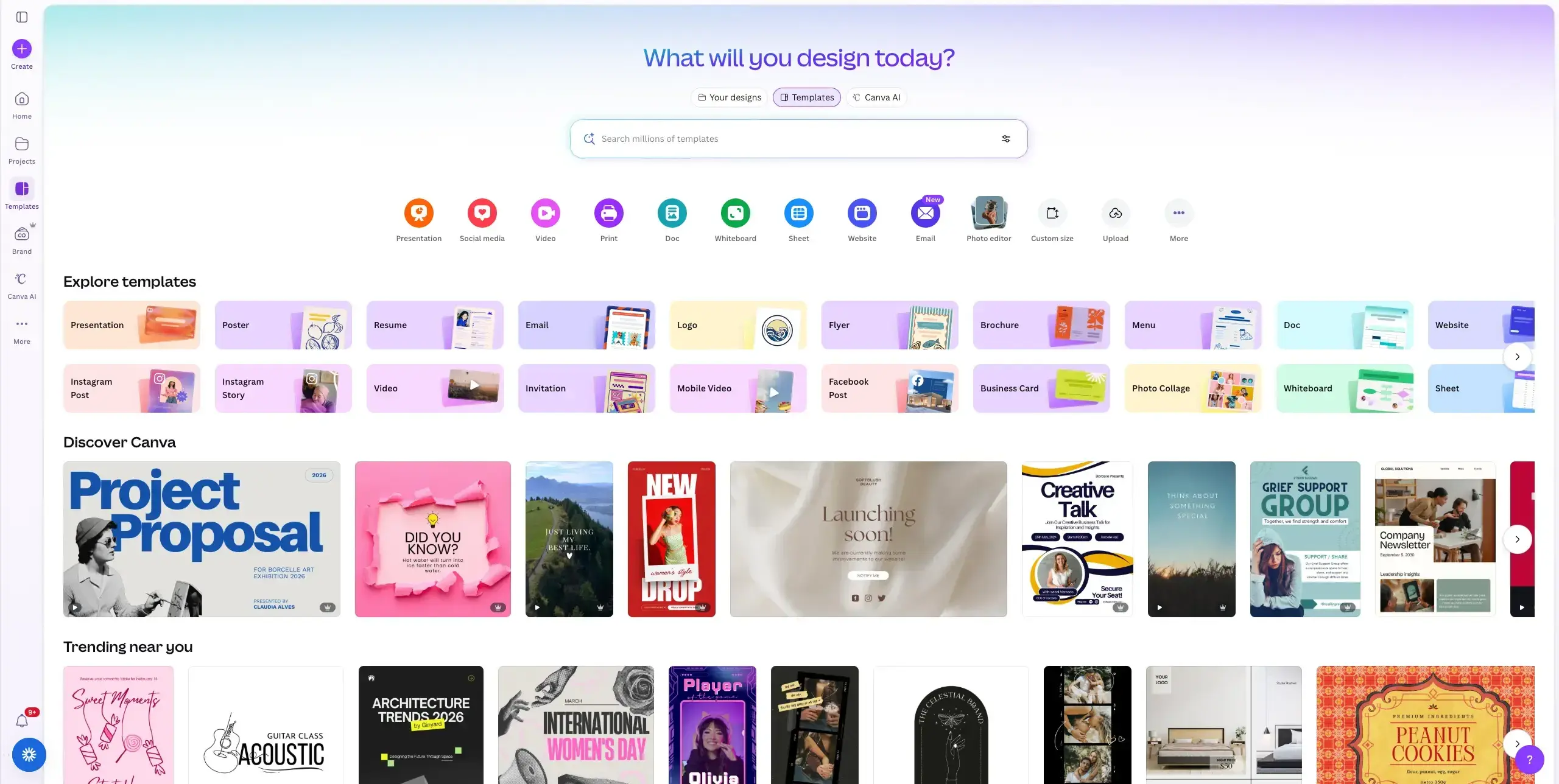
Canva democratizes design by making it accessible to team members without formal design training. It's useful for creating social media graphics, presentations, and simple marketing materials.
Key features:
Extensive template library
Brand kit for consistency
Real-time collaboration
Magic Resize for multiple formats
Pricing: Free plan available; Pro plan from $14.99/month
Linearity
Best for: Modern, free vector design
Linearity offers a contemporary approach to vector design with an intuitive interface and professional features, completely free.
Key features:
Intuitive vector drawing and editing
Auto Trace for converting images to vectors
Export for web, print, and mobile
iPad and Mac versions with cloud sync
Pricing: Free plan available; Pro plan from $83/month
Usability testing tools
Usability testing tools help you validate your UI designs with real users, gathering the insights needed to make informed design decisions.
Lyssna
Best for: Rapid user testing integrated with your design workflow
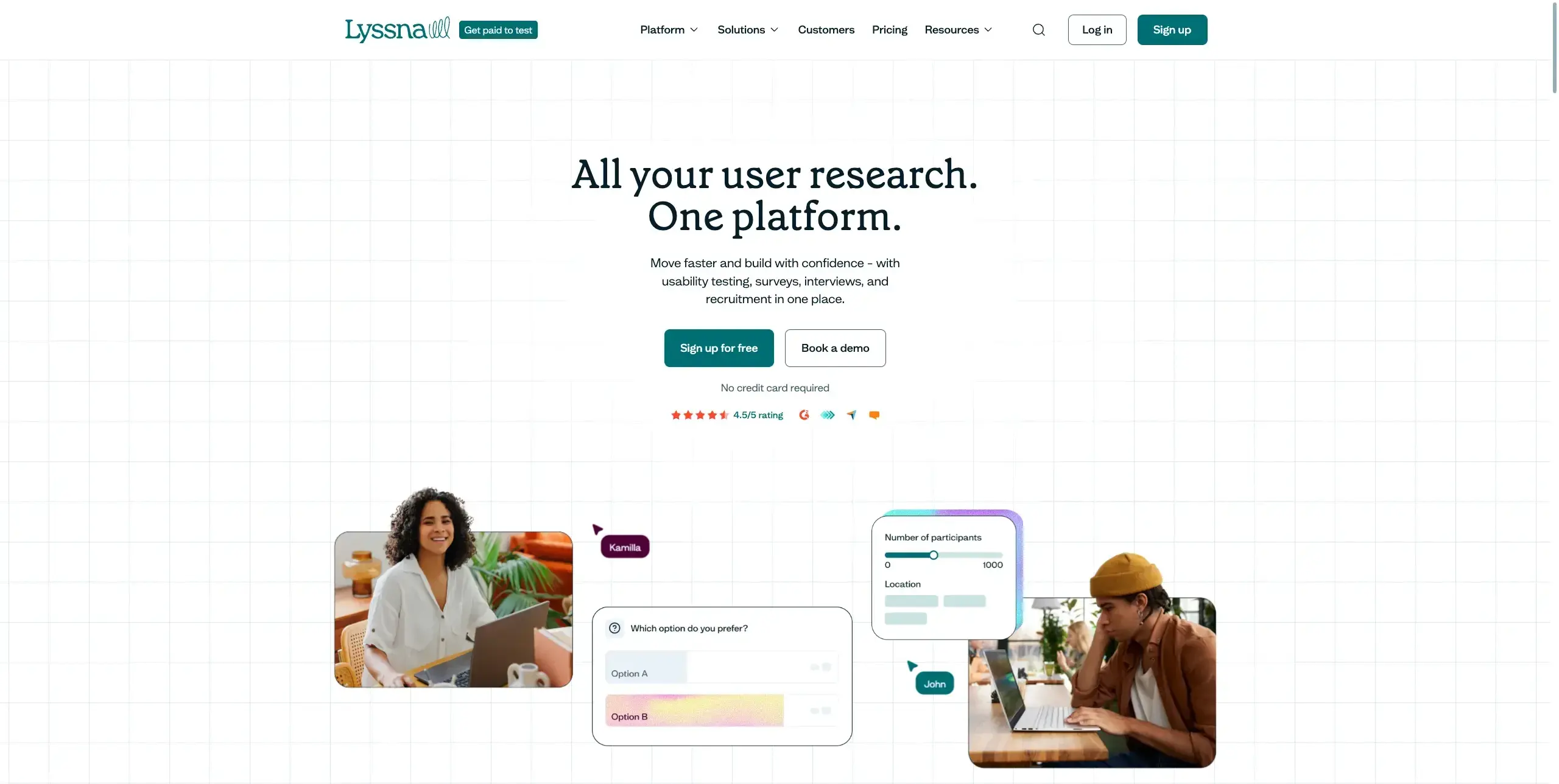
Lyssna provides an all-in-one platform for validating UI designs with real users. With access to a research panel of over 690,000 active panelists across 124 countries, you can quickly recruit participants who match your target audience using over 395 demographic attributes.
Key features:
Figma prototype integration for testing interactive designs directly
First click testing to validate navigation and layout decisions
Preference testing for comparing design variations
Five second testing to assess first impressions
Card sorting for information architecture validation
Recording capabilities (audio, screen, webcam) to capture think-aloud moments
As one G2 reviewer shares: "Lyssna (formerly UsabilityHub) is the BEST place for quick, reliable user tests! Rather than spending a fortune in time and money to conduct user research (that we'd never get the boss to agree to), we can run fast user tests and get damn-near instant results to help with our important design decisions. It's truly revolutionary, and has already won over even the most skeptical designers! We use it all the time."
Lyssna also offers product-focused usability testing templates that can be used and adapted for various testing scenarios, from assessing website conversions to evaluating product features.
Pricing:
Free plan: Includes three seats and access to research methods such as card sorting, first click tests, five second tests, navigation tests, preference tests, prototype testing, surveys, tree testing, and user interviews.
Growth: Starting at $166/month (paid annually). Includes everything in the Free plan, plus five seats, in-depth studies, AI-generated summaries, and Live website testing.
Enterprise plan: Pricing is tailored to your company and includes everything on the Growth plan, plus unlimited collaborators, security audits, and additional security integration.
Panel responses are pay-as-you-go for all plans.
Maze
Best for: Quantitative usability metrics
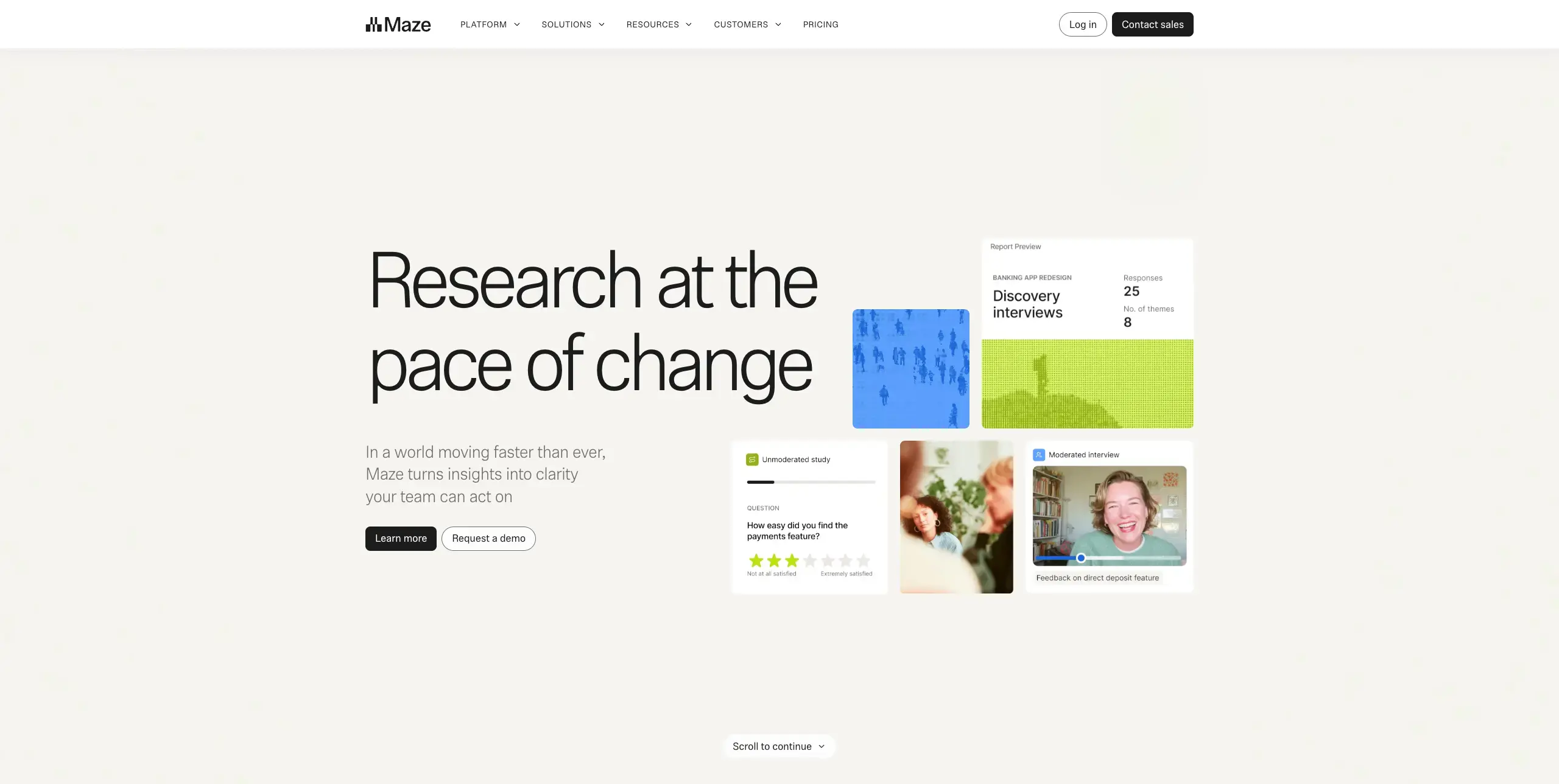
Maze focuses on generating quantitative data from usability tests, providing metrics like task completion rates, misclick rates, and time on task that help you measure design effectiveness.
Key features:
Automated usability metrics
Heatmaps and click tracking
Integration with major design tools
Mission-based testing structure
Pricing: Free plan available; Starter plan from $99/month for 5 seats
UserTesting
Best for: Enterprise-scale research programs
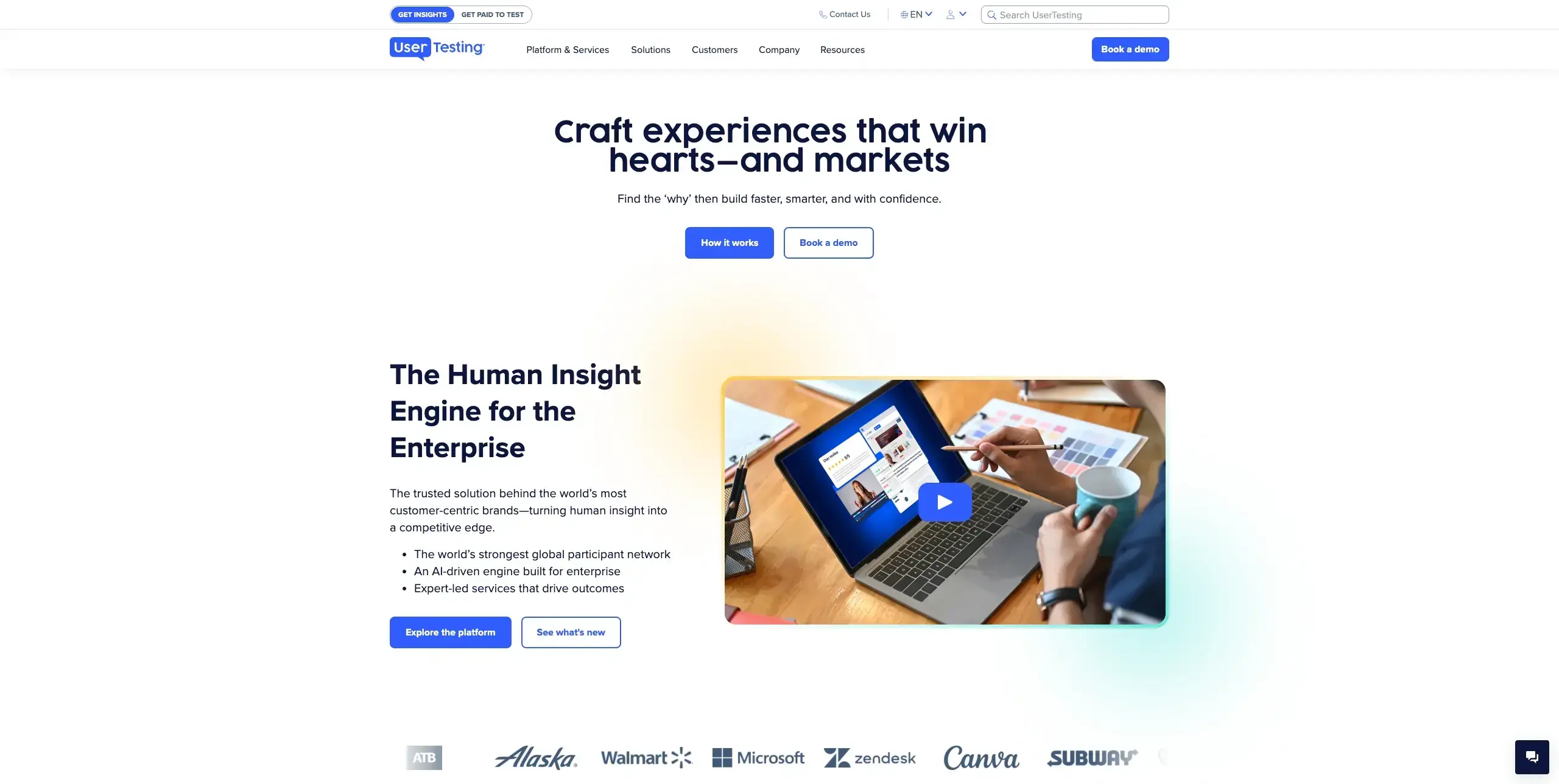
UserTesting offers a comprehensive platform for conducting moderated and unmoderated research at scale, with access to a large participant panel and advanced analysis tools.
Key features:
Large participant panel
Video-based feedback
Advanced targeting options
AI-powered insights
Pricing: Custom pricing for enterprise
Hotjar
Best for: Understanding user behavior on live sites
Hotjar combines heatmaps, session recordings, and surveys to help you understand how users interact with your live products. It's particularly useful for identifying usability issues in production.
Key features:
Heatmaps showing click, scroll, and move patterns
Session recordings
On-site surveys and feedback widgets
Funnel analysis
Pricing: Free plan available; Growth plan from $39/month
Lookback
Best for: Moderated remote research
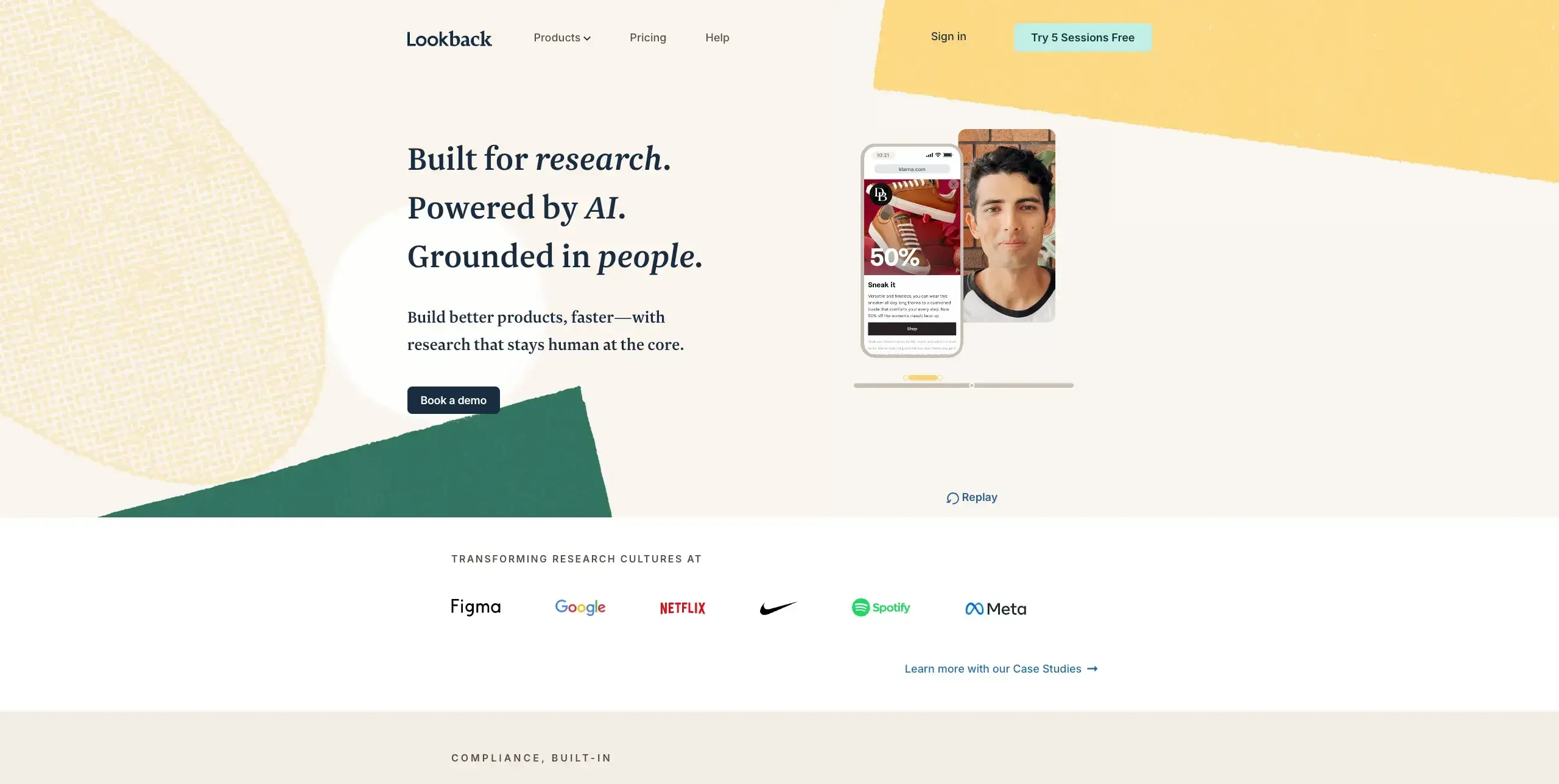
Lookback specializes in live, moderated user research sessions, making it easy to conduct remote interviews and usability tests with screen sharing and recording.
Key features:
Live moderated sessions
Automatic transcription
Highlight reels for sharing insights
Mobile testing support
Pricing: Freelance plan from $299/year
Handoff and collaboration tools
Handoff tools bridge the gap between design and development, ensuring that your carefully crafted UI designs are implemented accurately.
Zeplin
Best for: Design-to-development handoff
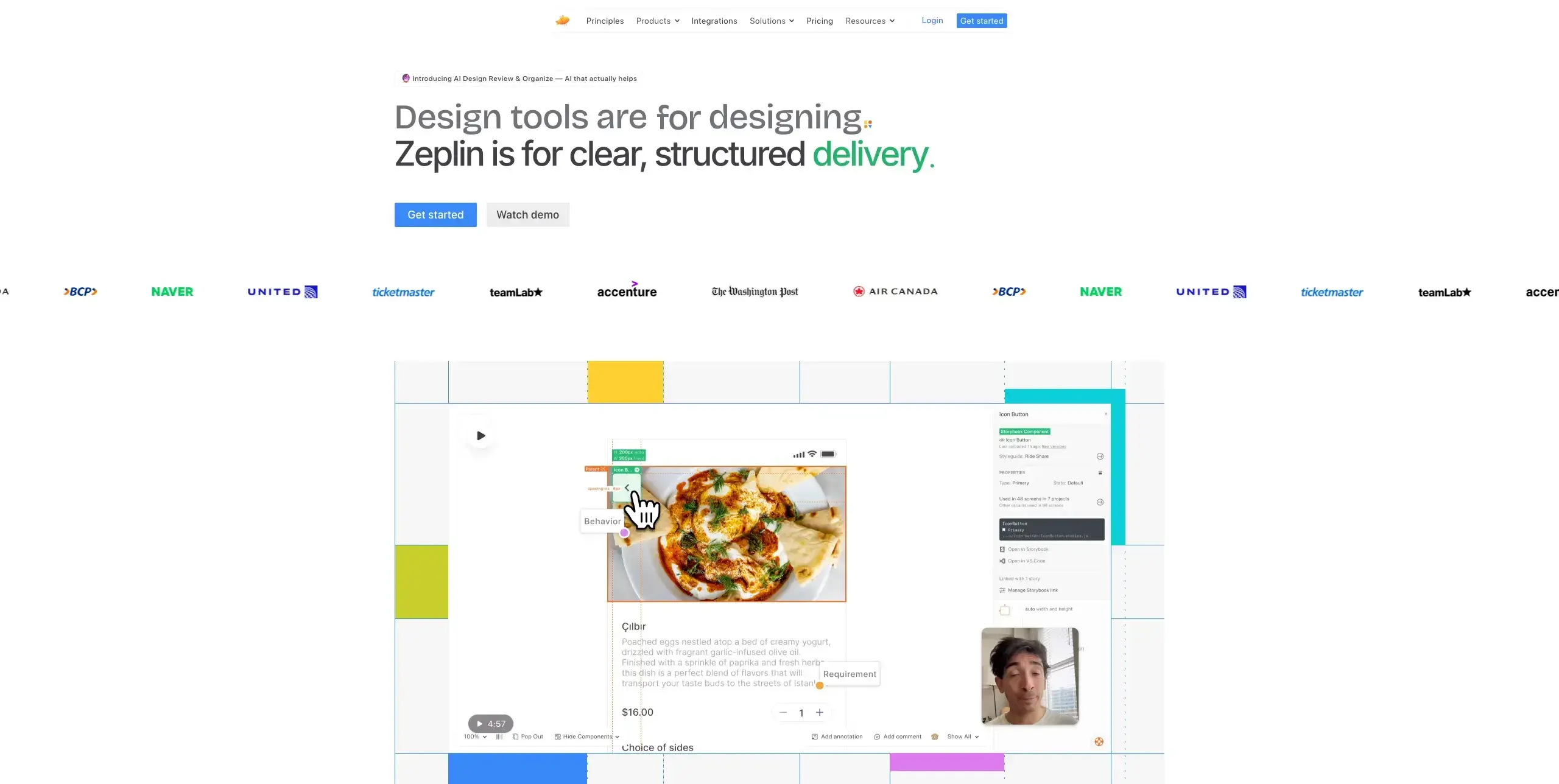
Zeplin generates style guides, specs, and assets automatically from your designs, making it easier for developers to implement your UI accurately.
Key features:
Automatic style guide generation
Component documentation
Code snippets in multiple languages
Version history and comparison
Pricing: Free plan available (1 project); Advance plan (pay-per-seat) from $12/month
Storybook
Best for: Component documentation and testing
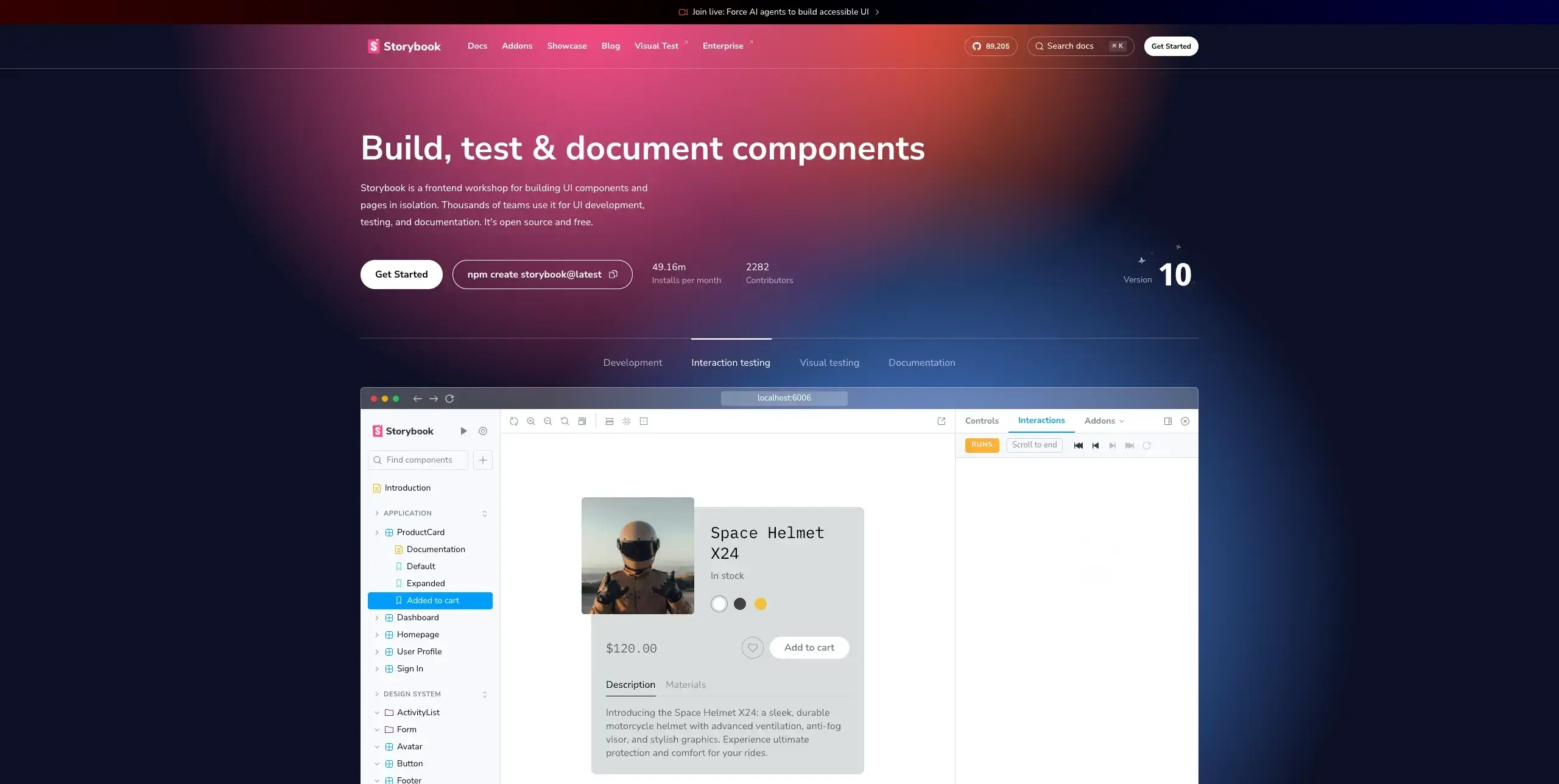
Storybook helps teams build and document UI components in isolation, creating a living style guide that bridges design and development.
Key features:
Component isolation for development
Interactive documentation
Visual testing capabilities
Extensive addon ecosystem
Pricing: Free and open source; enterprise features available
Miro
Best for: Collaborative workshops and ideation
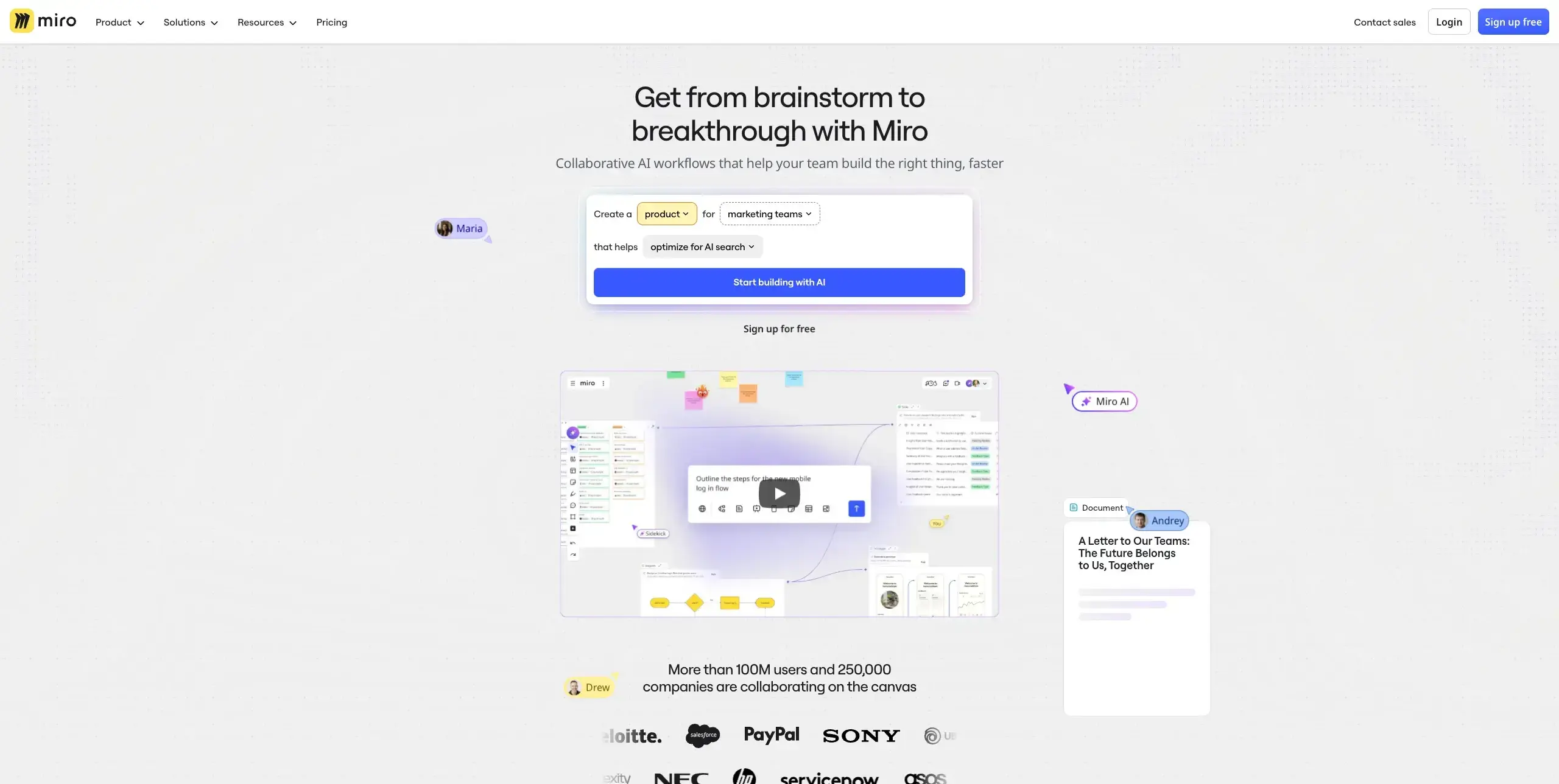
Miro provides an infinite canvas for collaborative work, making it ideal for design workshops, user journey mapping, and cross-functional brainstorming sessions.
Key features:
Infinite canvas with templates
Real-time collaboration
Video chat integration
Extensive integration library
Pricing: Free plan available; Starter plan from $8/month
Notion
Best for: Design documentation and knowledge management
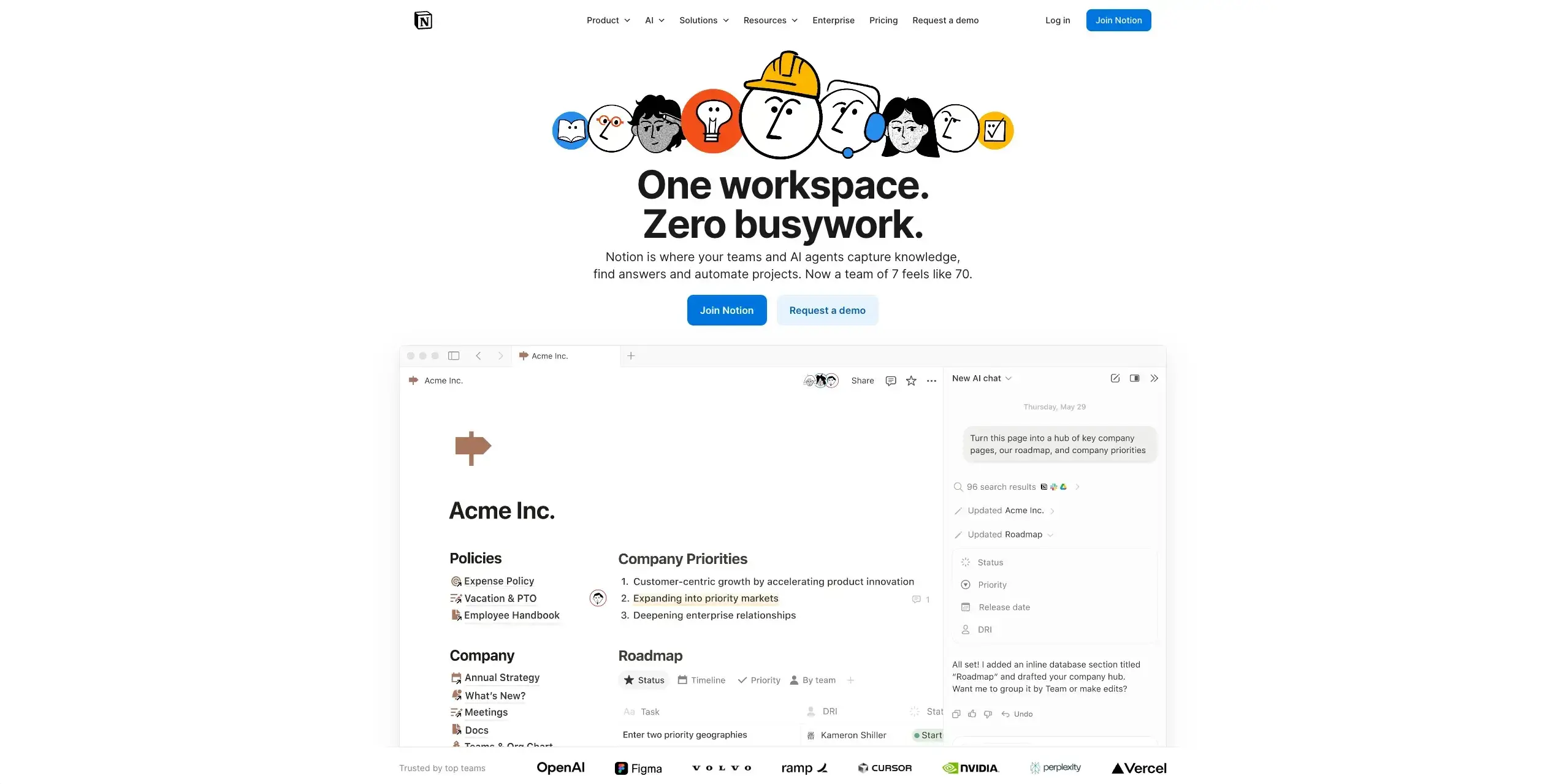
Notion combines documents, databases, and wikis in a flexible workspace that's perfect for maintaining design documentation, research repositories, and team knowledge bases.
Key features:
Flexible page and database structure
Real-time collaboration
Embed support for design tools
Template library
Pricing: Free plan available; Plus plan from $10/month
How to choose the right UI design tools
Selecting the right combination of tools depends on several factors specific to your team and projects. Here's a framework for making smart choices.
Consider your skill level
Beginners benefit from tools with gentler learning curves like Canva, Whimsical, or Figma's intuitive interface. As you develop expertise, you can explore more powerful options like Framer or Axure.
Experienced designers may prioritize advanced features, customization options, and integration capabilities over ease of use.
Evaluate your project needs
Different projects call for different tools, and understanding rapid prototyping approaches can help you choose the right combination:
Rapid prototyping: Figma, Framer, or ProtoPie
High-fidelity mockups: Figma, Sketch, or Adobe XD
Team collaboration: Figma, Miro, or Notion
User testing: Lyssna, Maze, or UserTesting
Developer handoff: Zeplin, Figma Dev Mode, or Storybook
Assess workflow integration
Your tools should work together seamlessly. Consider:
File compatibility: Can you easily move designs between tools?
Plugin ecosystem: Are there integrations that connect your workflow?
Team adoption: Will everyone on your team be able to use these tools effectively?
Factor in budget constraints
Tool costs add up quickly. Consider:
Free plan: Many tools offer generous free plans for individuals or small teams
Bundled pricing: Some tools offer better value when purchased together
One-time vs subscription: Tools like Affinity Designer and Principle offer one-time purchases
Think about collaboration needs
Remote and distributed teams need tools that support:
Real-time editing: Multiple people working simultaneously
Commenting and feedback: Asynchronous communication on designs
Version control: Tracking changes and maintaining history
Sharing and permissions: Controlling access for different stakeholders
Integrating testing into your design workflow
The most effective UI design workflows incorporate user testing at every stage, not just at the end. Here's how to build testing into your process.
Test early with low-fidelity designs
Even rough wireframes can be tested to validate navigation concepts and information architecture. Use card sorting to understand how users expect content to be organized, or first click testing to see if users can find key elements.
Validate visual design decisions
Before finalizing your visual direction, use preference testing to compare design variations with your target audience. This helps you make data-informed decisions about color schemes, typography, and layout approaches.
Test interactive prototypes
Once you have interactive prototypes, conduct usability testing to identify friction points in user flows. Lyssna's Figma integration lets you test prototypes directly, getting results back quickly so you can iterate within your sprint cycles.
Gather feedback continuously
Don't wait for formal testing sessions. Use surveys to gather ongoing feedback from users, and five second tests to quickly validate that your designs communicate the right message.
Build your design toolkit
The best UI design toolkit is one that supports your specific workflow, enables collaboration with your team, and – most importantly – helps you create designs that work for real users.
Start by identifying gaps in your current process. Are you spending too much time on handoffs? Consider tools like Zeplin or Figma's Dev Mode. Struggling to get user feedback quickly? Lyssna can help you validate designs with real users in minutes rather than weeks.
Remember that tools are only as effective as the processes around them. The most sophisticated prototyping tool won't help if you're not testing designs with users. The best handoff tool won't matter if designers and developers aren't communicating.
FAQs about UI design tools

Kai Tomboc
Technical writer
Kai has been creating content for healthcare, design, and SaaS brands for over a decade. She also manages content (like a digital librarian of sorts). Hiking in nature, lap swimming, books, tea, and cats are some of her favorite things. Check out her digital nook or connect with her on LinkedIn.

You may also like these articles